# End User Login Process
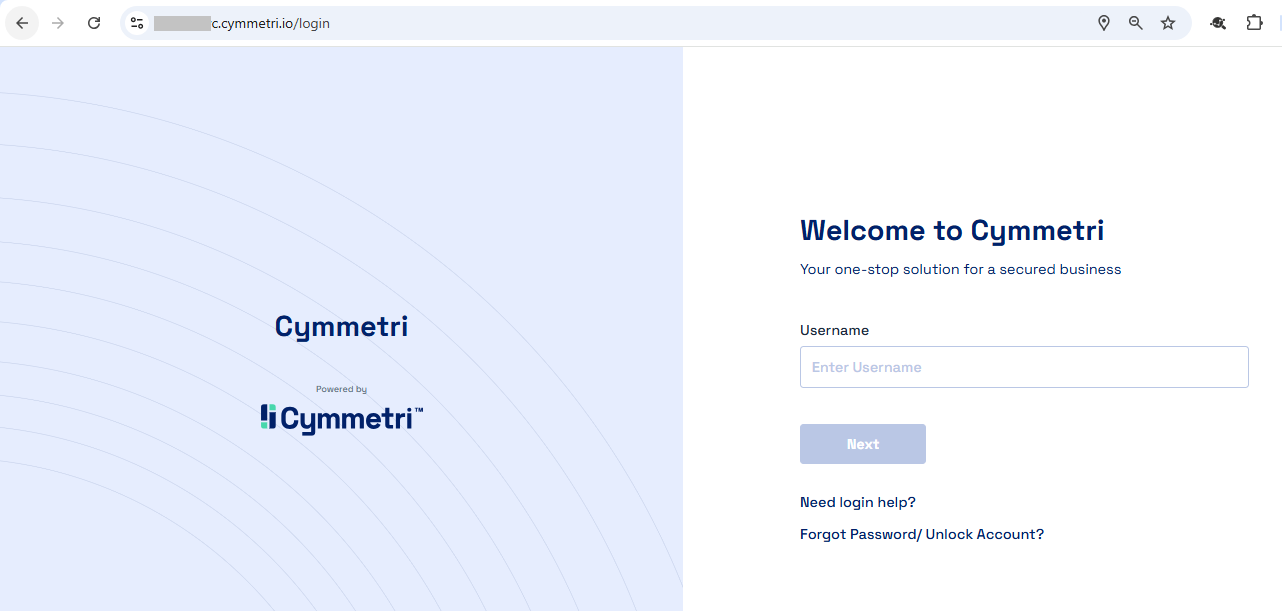
The End User Login Process commences when a user accesses their designated tenant instance login page, which typically conforms to the structure: https\://\.cymmetri.io
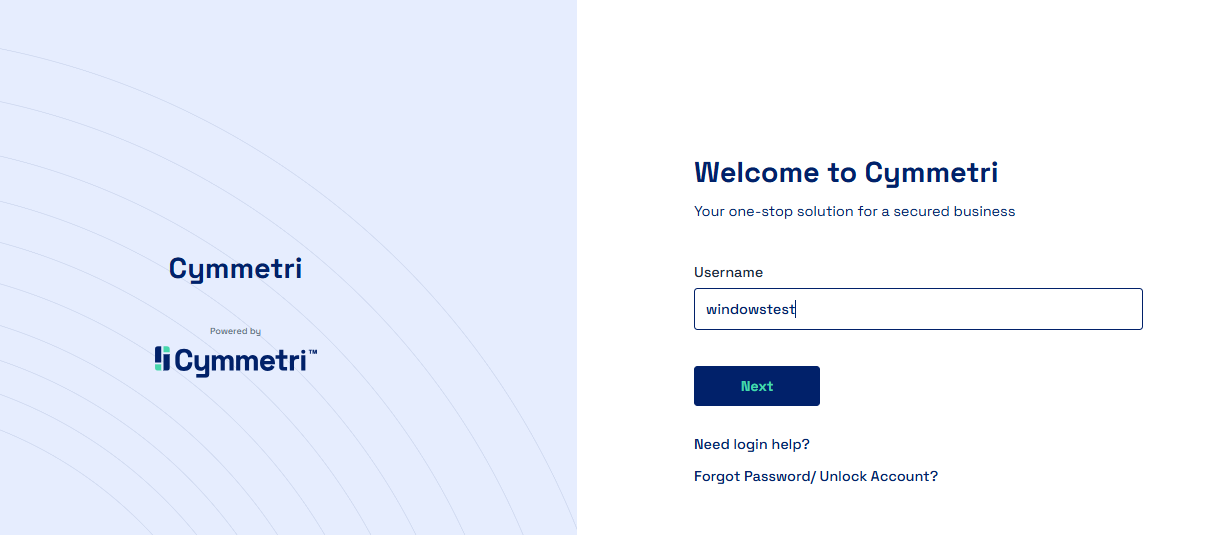
Once, on the Cymmetri Login page, the user needs to enter their username, users receive their login credentials on their corporate email as shown below:
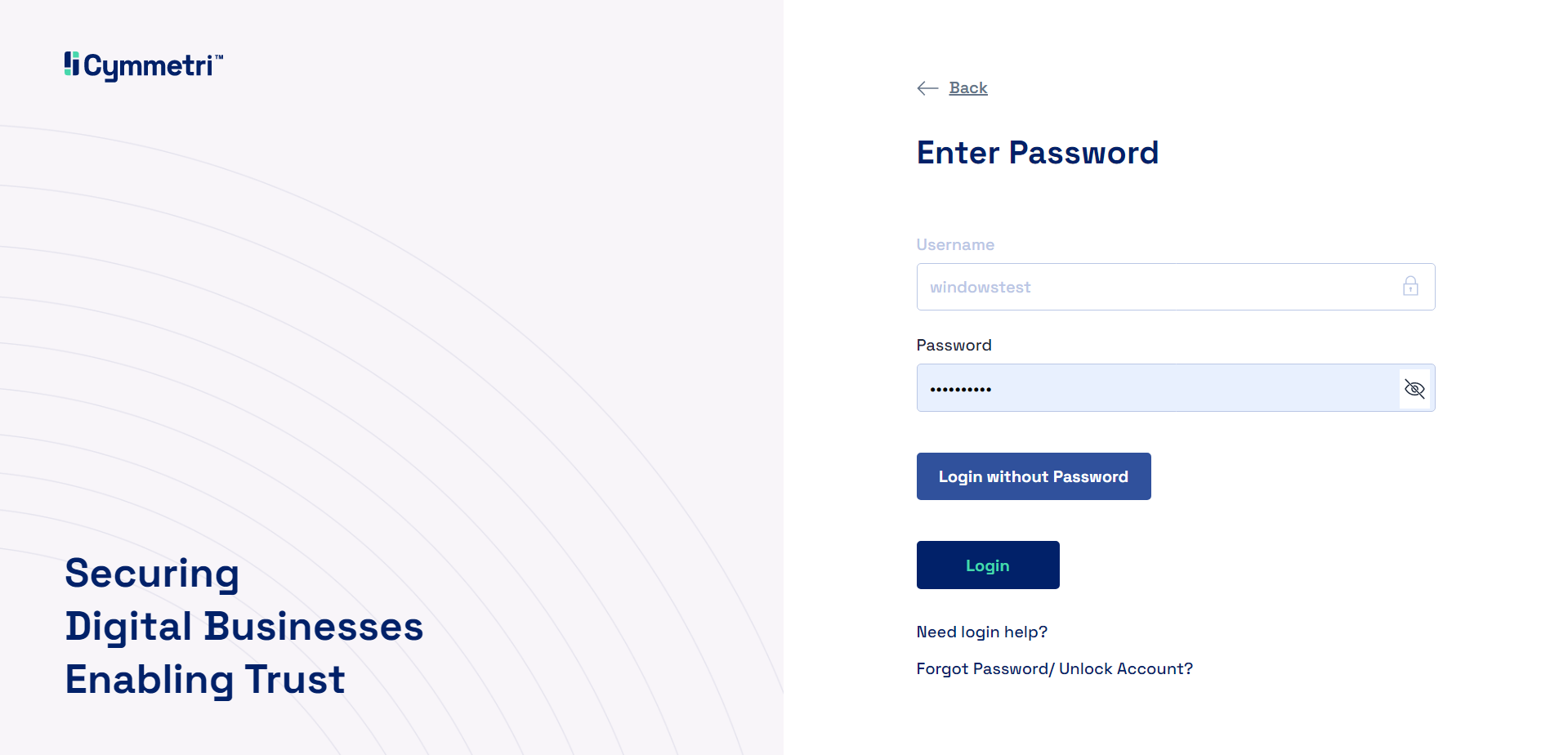
If the administrator has enabled password-less login option, then the user sees the Login without Password button, else the user sees only the Login button.
The user has the flexibility to select either a **password-based authentication** or a **passwordless authentication** mechanism during the login process.
### Password-based Authentication:
The steps below indicate the password-based authentication mechanism:
Once the username is entered and the user clicks on Next, the user then needs to enter the password received on their email, and click on the Login button.
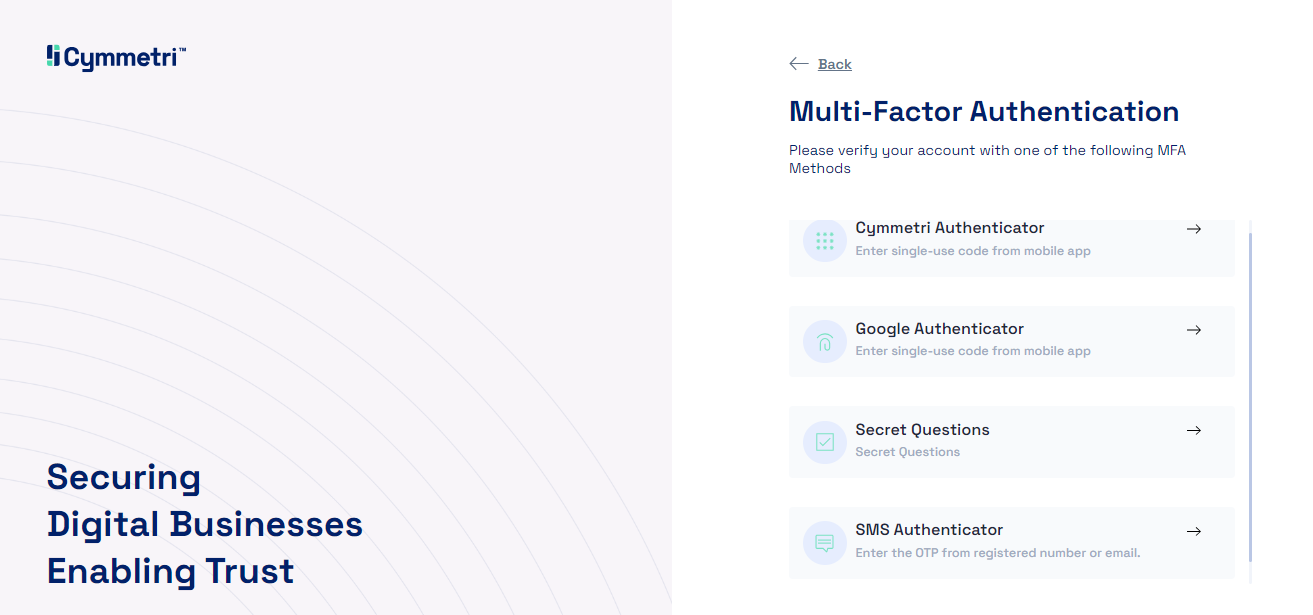
Depending on whether the administrator has enabled the multi-factor authentication options for the organization, and depending on the factors that the user has registered , the user is shown the various multi-factor authentication options.
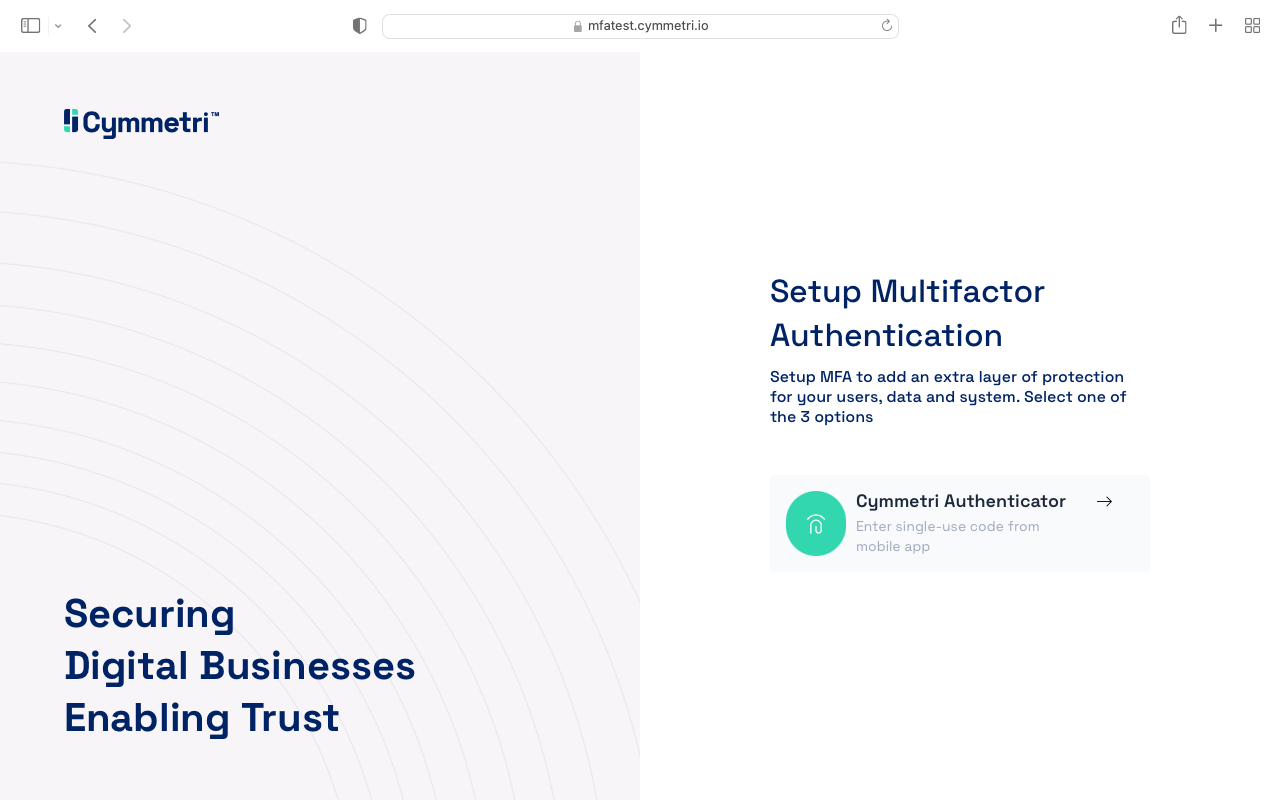
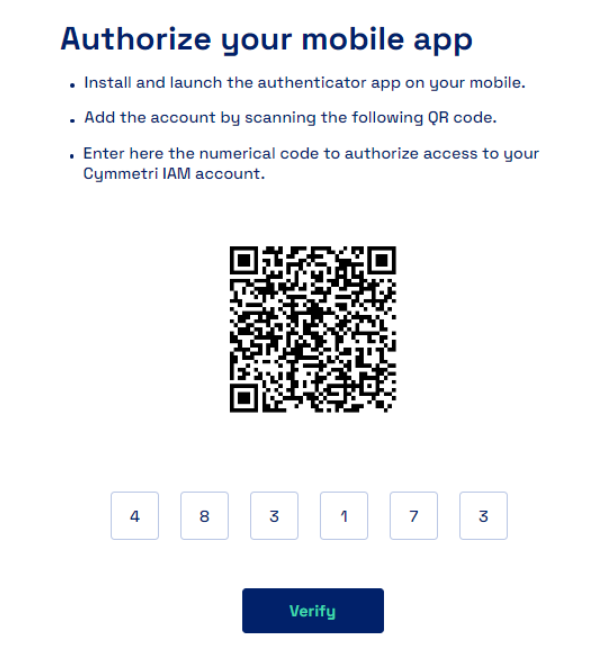
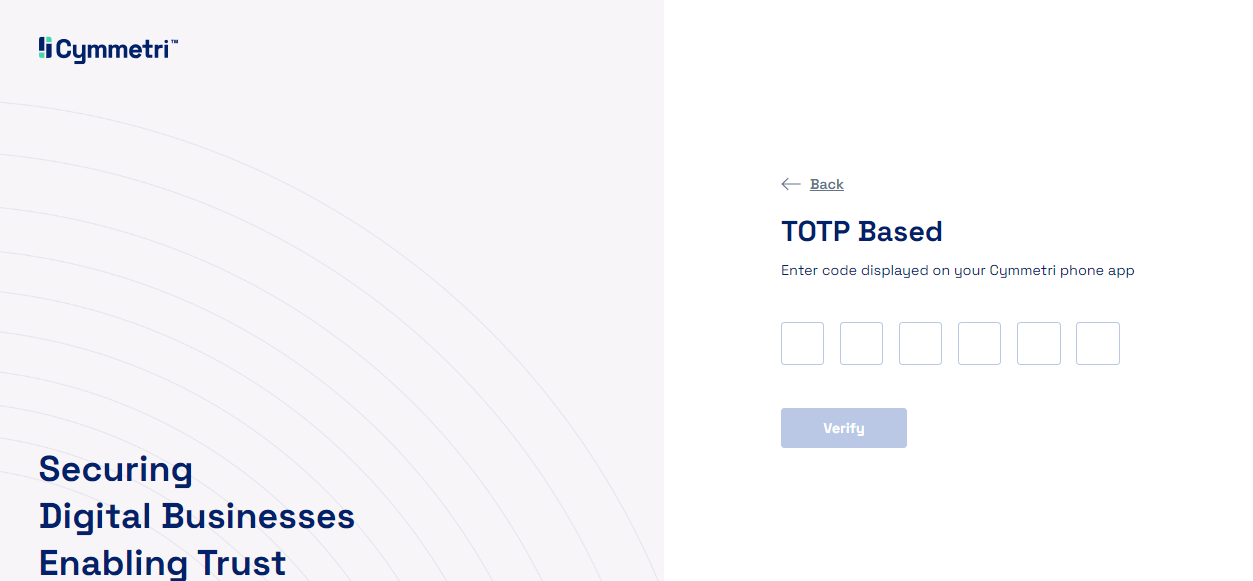
**Option 1** - Choosing Cymmetri Authenticator will require the user to enter their Time-based OTP as it appears on your Cymmetri Authenticator mobile application. The user needs to enter the TOTP and click on Verify to continue.
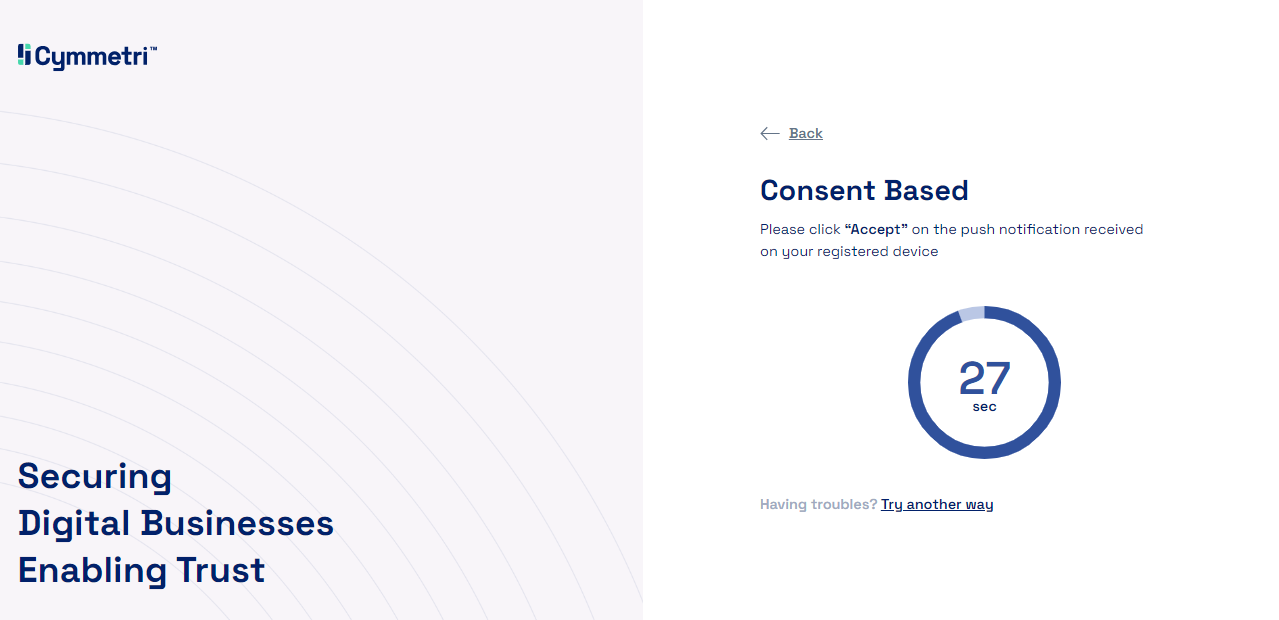
**Option 2** - Choosing Push Authenticator will send a push notification to the user's mobile phone and the user may click on the accept button to complete the login process.
**Option 3** - Choosing Google Authenticator will require the user to enter their Time-based OTP as it appears on their Google Authenticator mobile application. The user needs to enter the TOTP and click on Verify to continue.
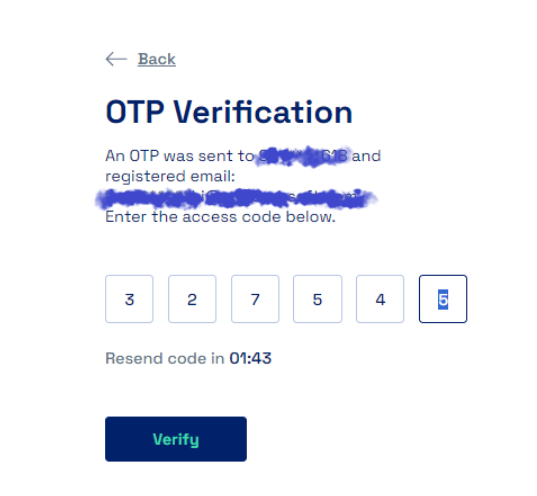
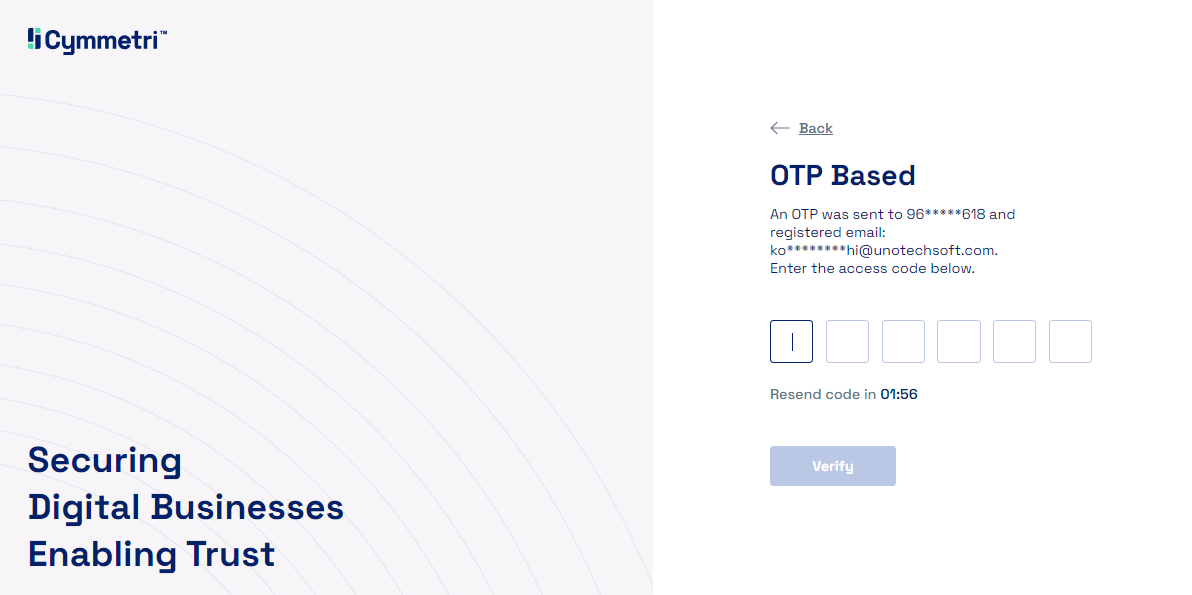
**Option 4** - Choosing SMS Authenticator will send an OTP to the user's registered mobile number and the user is expected to enter this OTP and Click on Verify to continue.
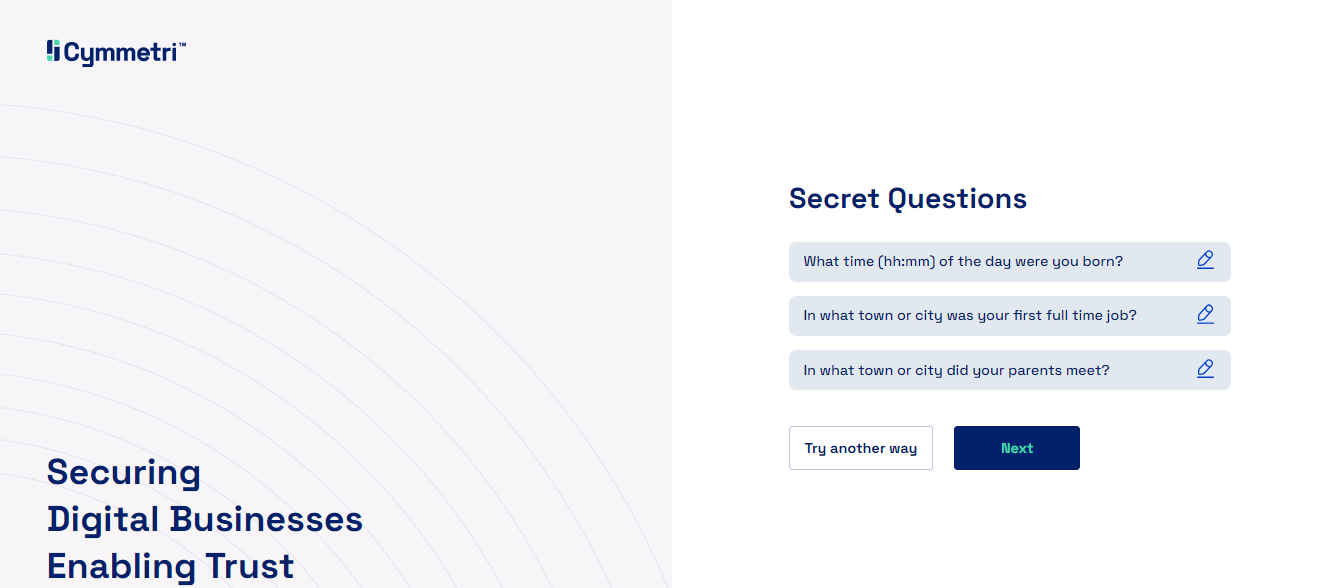
**Option 5** - Choosing Secret Questions Authenticator will ask the user to answer a certain number of questions as selected by the user and once answered the user may Click on Next to continue.
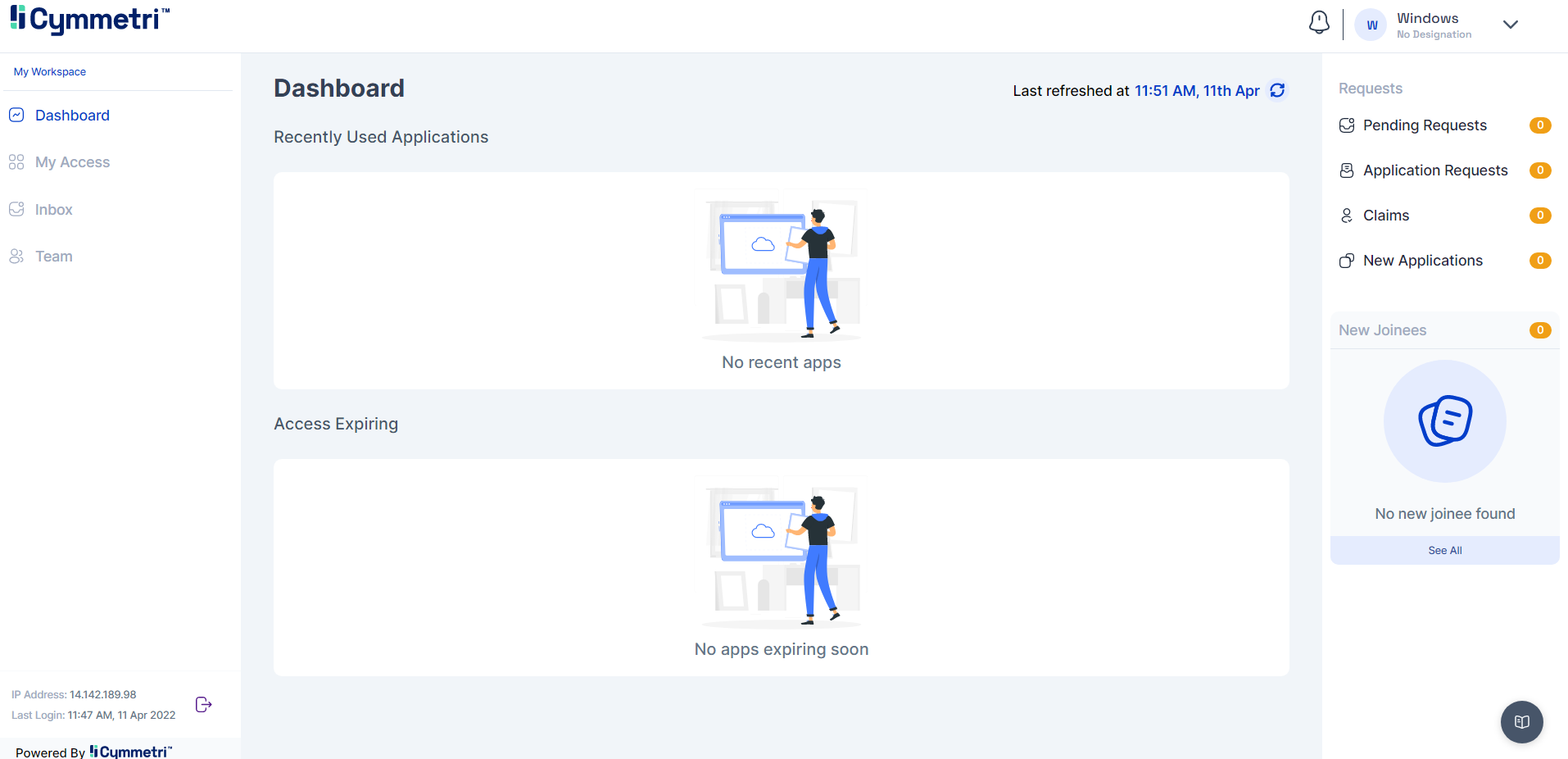
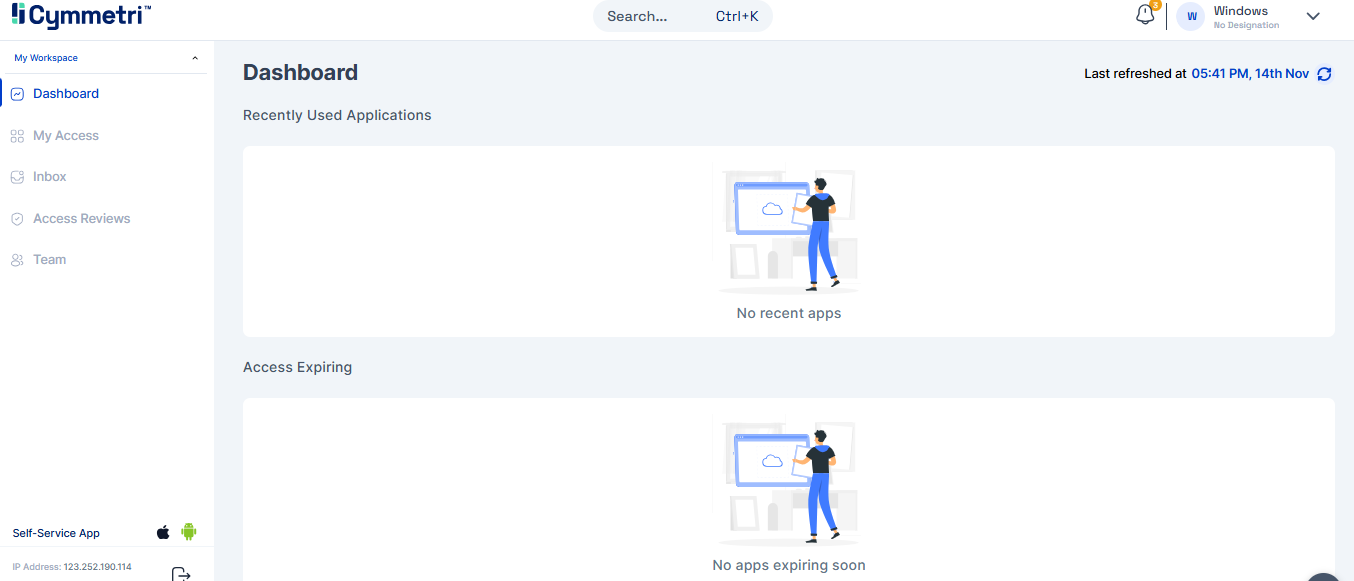
Regardless of the flow followed and the multi-factor authentication option chosen, the user will end up on the dashboard page below upon successful login.
### Passwordless Authentication:
The steps below indicate the passwordless authentication mechanism:
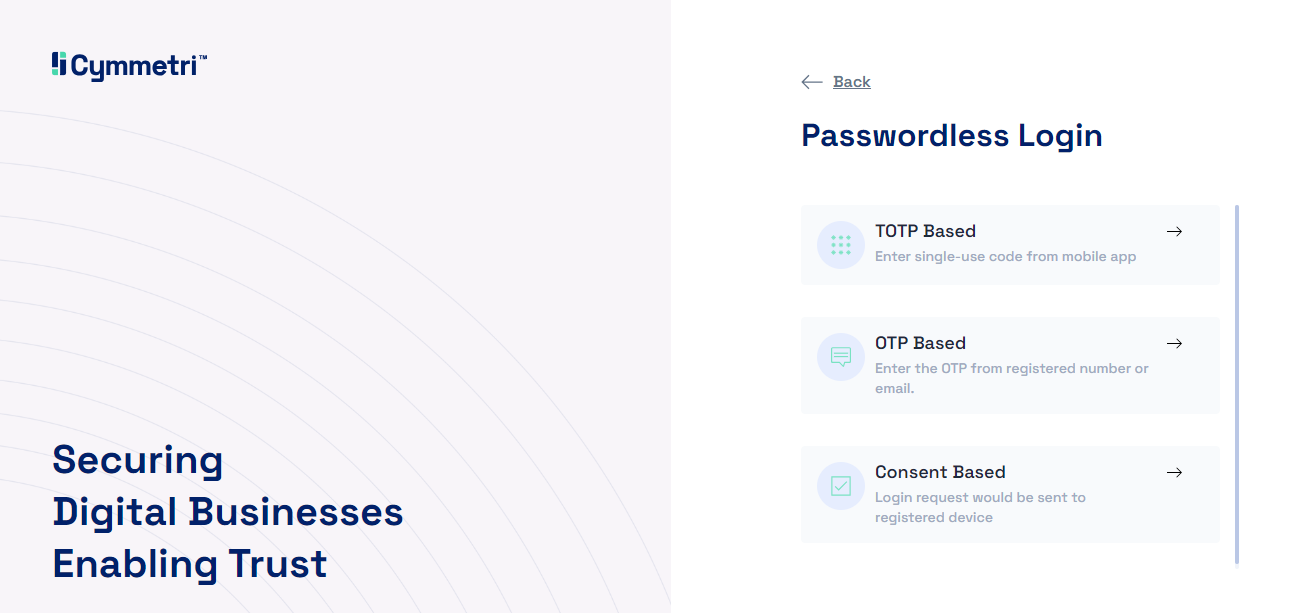
1. To begin the Passwordless Login flow the user needs to click on the "Login without Password" button, this will trigger the password-less login flow, will show the various registered passwordless login options.
**Option 1** - Choosing TOTP Based Passwordless Login mechanism will require the user to enter their Time-based OTP as it appears on your Cymmetri Authenticator mobile application. The user needs to enter the TOTP and click on Verify to continue.
**Option 2** - Choosing OTP Based PasswordlessLogin mechanism will send an OTP to the user's registered mobile number and the user is expected to enter this OTP and Click on Verify to continue.
**Option 3** - Choosing the Consent Based Passwordless Login mechanism will send a push notification to the user's mobile phone and the user may click on the accept button to complete the login process.
Regardless of the passwordless mechanism chosen to login , the user will end up on the dashboard page below upon successful login.