
Loading...
Loading...
Loading...
Loading...
Loading...
Loading...
Loading...
Loading...
Loading...
Loading...
Loading...
Loading...
Loading...
Loading...
Loading...
In this section within Cymmetri, a range of general or broad configuration settings and options are managed. These settings encompass various foundational configurations that affect the overall behavior of Cymmetri.
There are different system configurations in Cymmetri mentioned below:
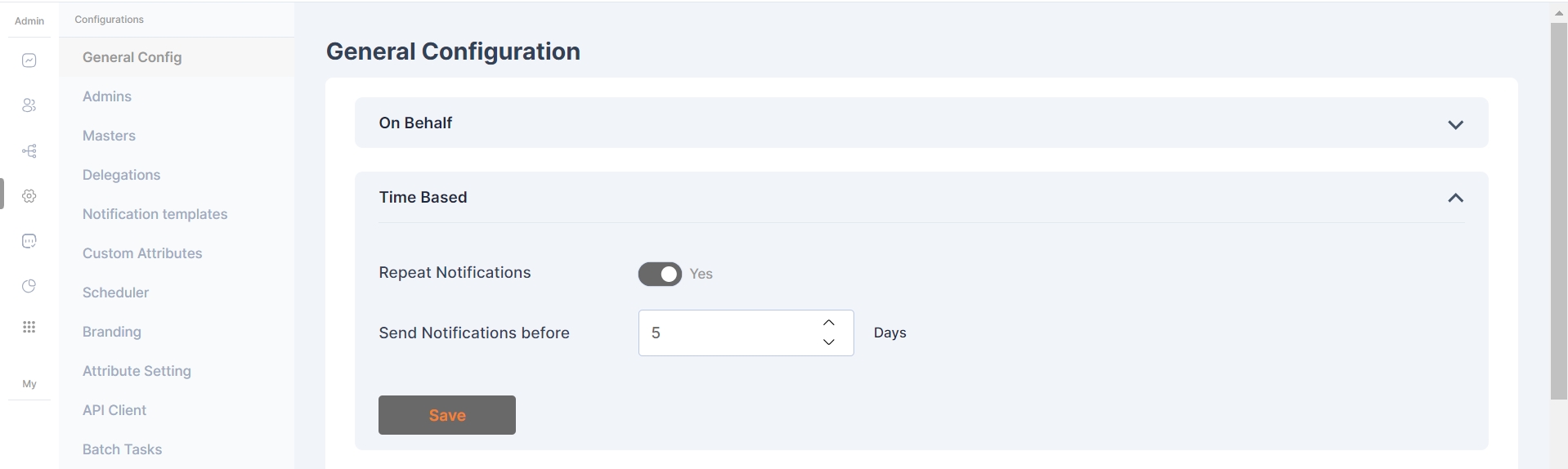
In the Time-Based configuration, system administrators can determine whether the system will send repeated notifications to users based on the number of days remaining, as specified in the 'Send Notifications before' field. This occurs when an application is assigned to the user as a time-based application and is about to expire.
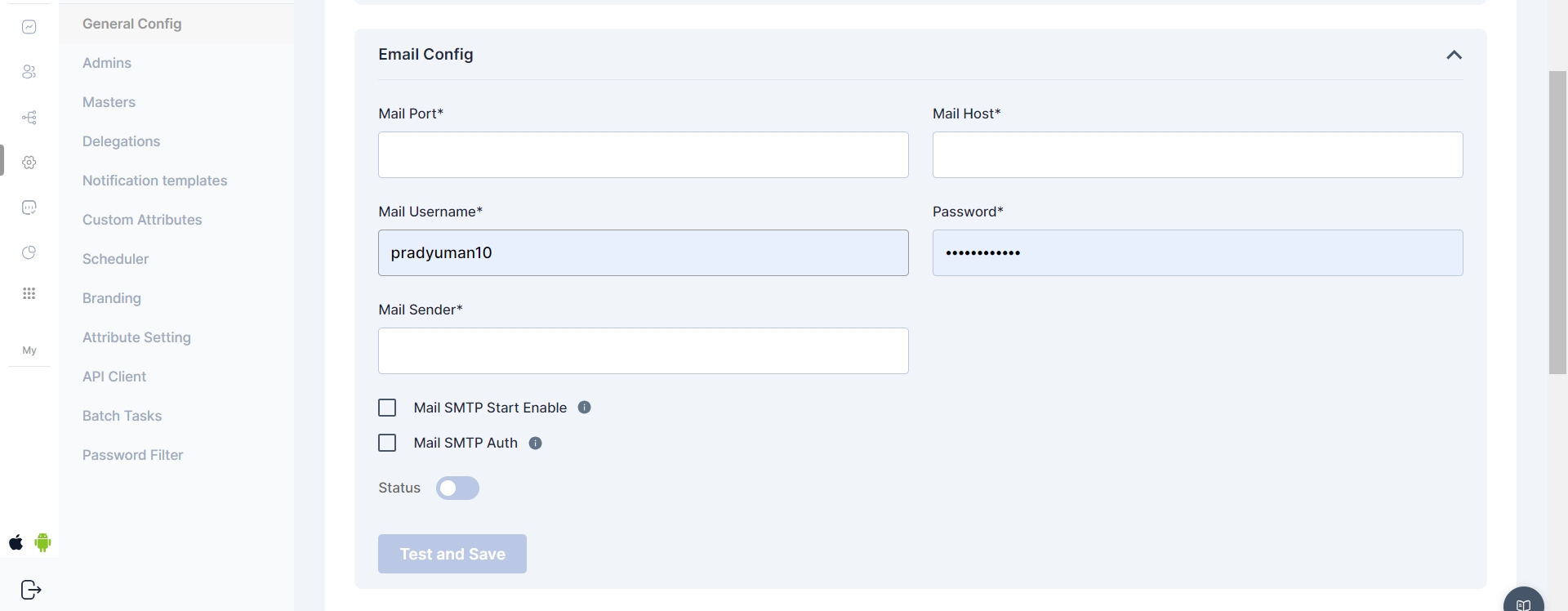
These settings and configurations within Cymmetri are specifically related to the management and customization of email-related functionalities. This configuration area allows administrators to set up, manage, and customize the email communications as per the organization's needs.
Archive Config
Within the Archive Config section, administrators have the ability to determine the duration a user remains suspended before transitioning to the archived users' section. This can be specified using the "Archive After" setting.
The system incorporates a scheduler feature, enabling administrators to automate the transition of users from the suspended state to the archived state. The scheduler runs within defined time frames, streamlining the management of user statuses.
As an example, if the "User Archive After" configuration is set to 0 days, a user will promptly move to the archived users section upon suspension, and if it is set to a higher number it will wait for the configured number of days before moving the user to archive. This allows for flexibility in tailoring user management to specific organizational needs.
Within the Workflow Preference Config, administrators have the ability to specify the visibility and editability of workflows associated with user access requests for a particular application. This setting allows for tailored control over how approvers interact with the configured workflow.
When this option is selected, approvers for the requested application are visible to the user initiating the access request. Transparency is maintained throughout the workflow process.
Opting for this configuration ensures that approvers for the requested application remain hidden from the user. The workflow operates discreetly in the background without user visibility.
If this preference is chosen, users initiating access requests have the ability to select approvers based on their availability, providing a more dynamic and user-centric workflow experience.
This functionality applies if a workflow has been configured for the specified application, offering flexibility in managing user access requests in alignment with organizational requirements.
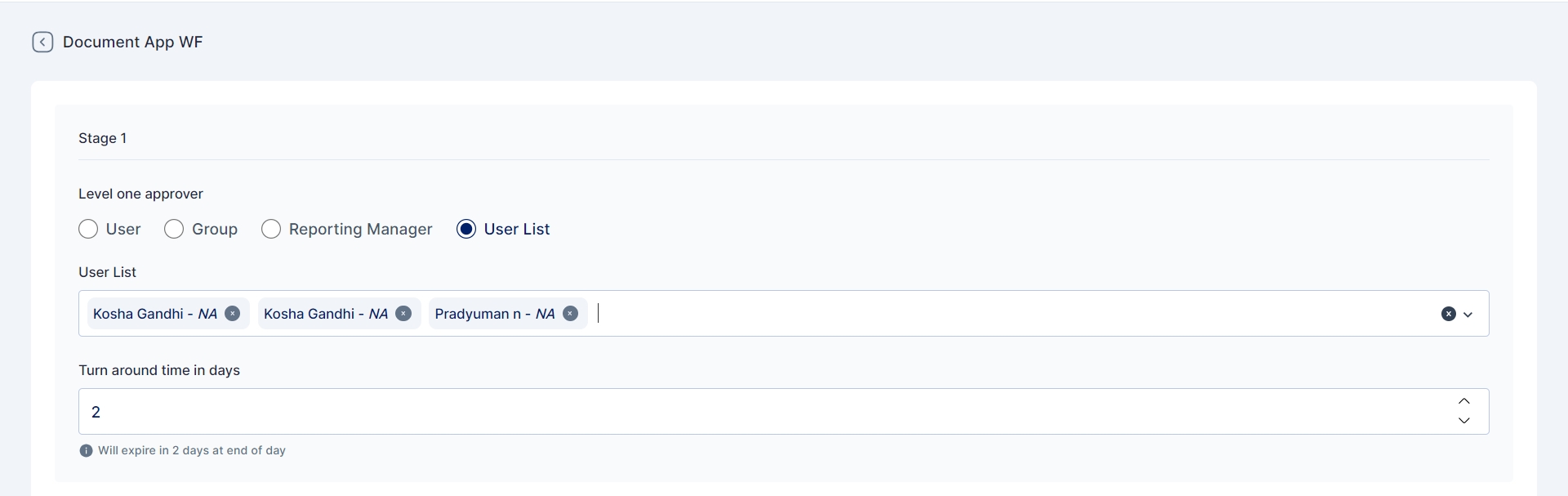
The approvers mapped in the workflow can only be edited only if they are part of the "user list" in workflow configurations.
In conclusion, if the workflow preference config is set to Editable, the requester will only be able to select the approver from the workflow if the approvers are part of a user list.
The administrators have a centralized control panel to define how a user's manager can perform password resets. This feature streamlines the process while ensuring security and flexibility.
The administrator has three distinct options for configuring the password reset process, allowing them to choose a method that best fits the organization's security policies and workflow.
Generate Password: This option allows the user's manager to generate a random, one-time password. The manager must then securely communicate this password to the end-user, who is required to use it for their next login and change it to a new, permanent password immediately. This method ensures that the manager does not have access to the user's long-term password.
Generate Password and Send to User's Email: With this option, the manager triggers the password reset, and the system automatically generates a new password and sends it directly to the user's registered email address. This eliminates the need for the manager to manually transmit the password, reducing the risk of human error and improving efficiency.
Send Reset Password Link to User's Email: This is the most secure option. The manager initiates the process, but instead of a password, the system sends a secure, time-sensitive "Reset Password" link to the user's email. The user must click the link to create a new password, ensuring that only they have access to their account and that the process is compliant with modern security best practices.
To add a layer of security and prevent unauthorized password resets, administrators can enable the "OTP required" setting. When this is activated, a one-time password (OTP) is sent to the user's registered mobile number before the password reset can be finalized. This ensures that the user is the legitimate owner of the account before any password changes are applied, guaranteeing that only the right person's password is being reset.
For understanding how the admin resets the password, refer to .
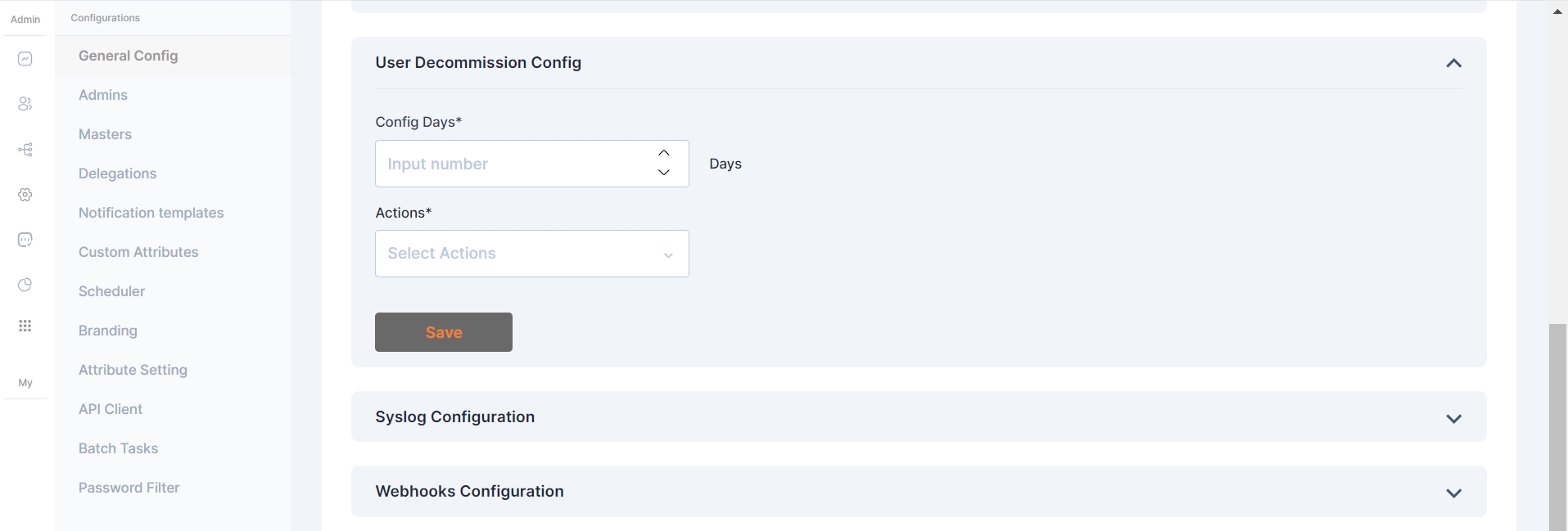
The User Decommission Config is a vital feature in Cymmetri, allowing administrators to automate user decommissioning based on login activity.
In this configuration, actions are triggered if the user hasn't logged in to Cymmetri in N number of days
Config Days: Set the threshold for user inactivity in terms of days. Users who have not logged in for the specified duration will be subject to the defined actions.
Actions: Choose from three distinct actions to be taken when the specified inactivity threshold is reached:
None: No action will be taken based on user inactivity.
Inactive: Users exceeding the configured inactivity period will be marked as inactive.
Delete: Users who have not logged in for the specified duration will be suspended from the system.
Syslog configuration in Cymmetri allows for the seamless integration of logging and event information with external Syslog servers. By defining specific parameters, administrators can ensure that critical system events, user access information, and other relevant data are transmitted in real-time to a Syslog server.
Syslog Config fields:
Syslog Name - Assign a unique name to this Syslog configuration
App Name - Specify the application name associated with this Syslog configuration.
Server Host Name - Enter the hostname or IP address of the Syslog server that will receive log messages
Server port - Define the port number on the Syslog server where log messages will be sent.
In configuring these parameters, administrators tailor Cymmetri's interaction with external Syslog servers, optimizing the logging process to meet organizational needs.
Webhooks in Cymmetri's admin module provide a powerful mechanism for real-time communication and integration with external applications or services. Administrators can configure various webhook settings to enhance the system's functionality and streamline interactions with external components.
Protocol - Communication protocol - (Static field)
Method - HTTP method for webhook requests - (Static Set to post)
Server - Enter the server or endpoint URL where the webhook payloads will be delivered.
Server Context path - provide the context path for the specific service within the server.
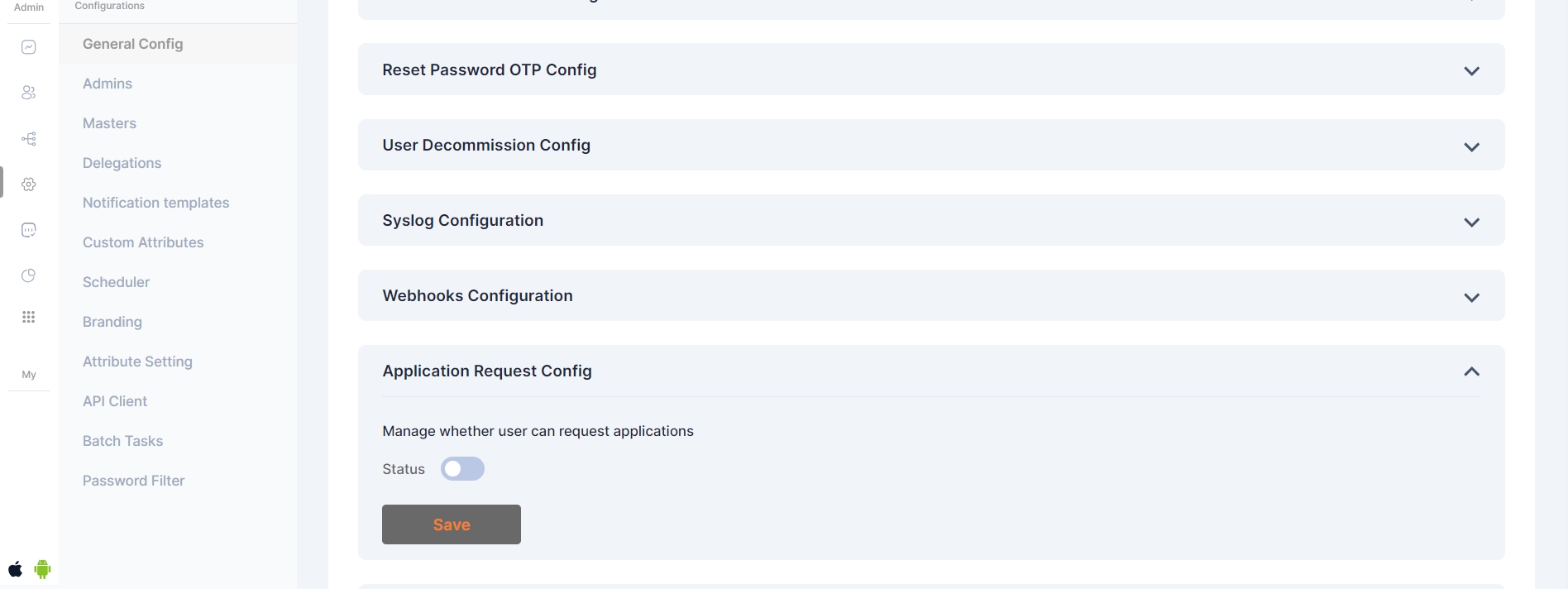
This setting determines if a user can initiate requests for new applications through the Cymmetri self-service page.
When the status is active, the user will see the "Add New" button on the "My Access" page within the "My Workspace" section. By clicking this button, the user can submit an access request for additional applications.
The User Threshold Config in Cymmetri primarily includes three key functions — Create Count, Update Count, Delete Count, and Send threshold notifications to. These define the maximum number of user creation, modification, and deletion operations permitted within the system in a single day, ensuring controlled provisioning and preventing unintended bulk changes.
Create Count: Sets the maximum number of new user accounts that can be generated.
Update Count: Defines the upper limit for modifications or changes to existing user profiles.
Delete Count: Establishes the cap on how many user accounts can be removed.
Threshold Notifications: You can configure who should be notified when the threshold is exceeded. Notification will be sent via email.
The recommendation configuration defines how the engine generates, manages, and displays application or role suggestions for users during campaigns and workflows. It ensures recommendations are personalized using user attributes, access history, and peer behavior, while maintaining compliance through segregation of duties checks. The configuration also allows dynamic recalculation of scores when user data changes, provides flexibility to enable or disable recommendations with corresponding updates in the UI and history, supports multiple tenants, and retains recommendation history for reporting even if recommendations are later disabled. 1. Recommendation Engine in Campaign:
Recommendation Engine in Approver Inbox:
The External SoD Checks Config enables configuration of segregation-of-duties checks, webhook connections, and workflows to detect, notify, and manage access violations during application assignments. The Webhooks Config in Cymmetri’s External SoD Service is used to establish connections with external systems or services. It allows the platform to send real-time event notifications (such as SoD violations or workflow triggers) to defined webhook endpoints. When All Applications is selected, External SoD checks will run for every application, except those explicitly listed in the Excluded section, which will be ignored during violation detection.
Application Assignment with role during External SOD Checks: When a user is assigned an application along with a specific role, the system evaluates the assignment against configured External SoD rules.
Multiple SOD Violations Detected: It indicates that a user’s application or role assignment has triggered more than one segregation-of-duties conflict, all of which are captured and sent for review through the workflow process.
Inbox Violations: Segregation-of-duties conflicts detected during application or role assignments, which are delivered to the user’s or approver’s inbox for review and necessary action.
Workflow Approver View: It is the interface where approvers can review, approve, or reject access requests that have triggered segregation-of-duties violations, ensuring proper compliance before access is granted.
This integrated advanced CAPTCHA validation capabilities bolsters the security against automated threats and bot-based attacks. The platform now supports two distinct methods, providing administrators with a flexible approach to securing user interactions.
hCaptcha: This method is a privacy-focused and widely adopted alternative to traditional CAPTCHA. It requires users to perform a simple task (e.g., identifying objects in an image) to prove they are human, effectively blocking bots while maintaining user privacy.
Traditional CAPTCHA: This classic method uses distorted text or numbers that users must correctly enter. While this method is effective, it can sometimes be more challenging for users to solve.
These integrations enable Cymmetri to enhance its security posture by providing a robust defense layer, ensuring that user registration and login processes are protected from malicious automated activity.
From this menu, the administrator has two options:
hCaptcha Type: Selecting this option enables hCaptcha validation, which utilizes simple, interactive tasks for user verification.
Traditional CAPTCHA: Choosing this option will implement the classic method of using distorted text.
The administrator can then save the configuration. Below is an example of what the traditional CAPTCHA looks like to an end-user.
Protocol - Choose the preferred protocol for Syslog communication - TCP or UDP.
Secret - This secret key, known to both Cymmetri and the external service, helps authenticate the webhook requests.
Token Expiry Minutes - Define the duration (in minutes) for which authentication tokens associated with webhook requests are valid.


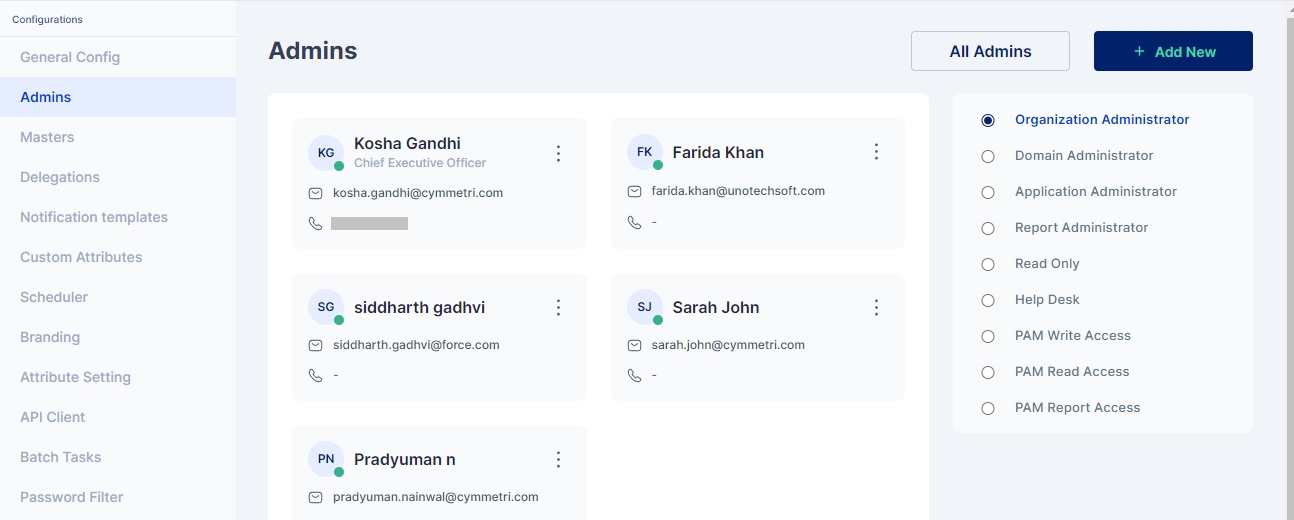
Cymmetri platform has six different admin roles with various levels of access to the various menus and resources on the administration portal of Cymmetri.
In addition to these six admin roles, Cymmetri also supports three different privileged user roles that grant varying levels of access (read, write, report) to privileged users within Cymmetri.
The various admin roles on the Cymmetri Identity Platform may be described as follows:
This is the so-called 'super admin' administrator role in the Cymmetri platform. Administrators with this role have the authorization to modify any settings or make changes to the tenant.
This is a slightly less privileged administrator. Most tenant-wide system settings, such as the configuration of SMS and email providers (when configured by the tenant), are restricted for domain administrators. All other configurations can be viewed and edited by administrators with the Domain Administrator role.
An administrator with the role of Application Administrator has access to Identity Hub configurations, including Application, User, and Group configurations. The Application Administrator can map users and groups to applications and can edit all configurations related to Application Management.
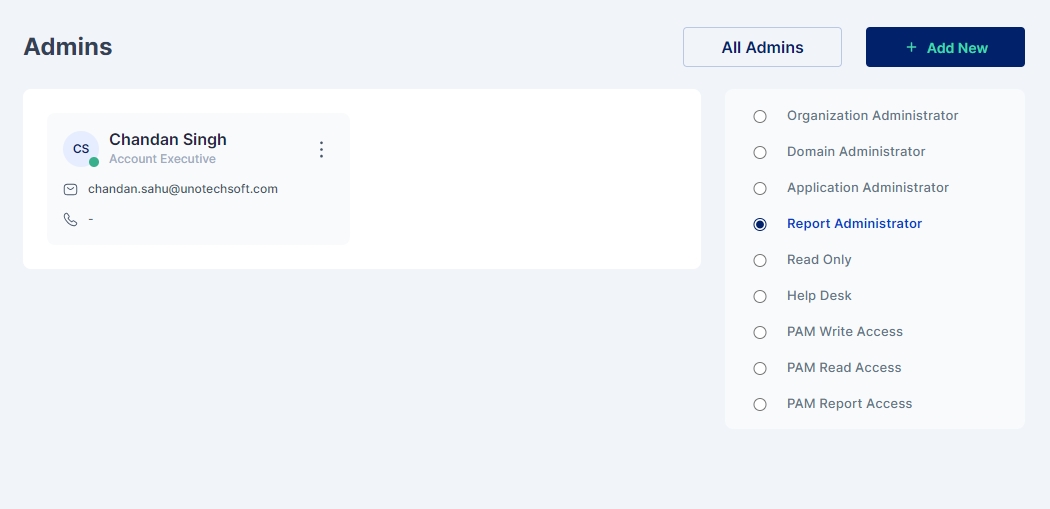
An administrator with the role of Report Administrator has access to the Reports menu, which includes the ability to view, modify, and add new reports.
The Helpdesk administrator has access to a very limited set of administrative functionalities, such as resetting the password of the end-user, removing configured Multifactor authentication options, and other such common use cases.
All administrative users have editing access to the various administrative sections of the Cymmetri platform. However, administrators with the "Read Only Administrator" role do not have editing access to any of the settings or configurations; they only have "Read Only" access to the administrative section.
PAM Write Access in Cymmetri grants users the privilege to connect to servers via RDP or SSH and perform write or modification actions on those servers. Users with PAM Write Access have the ability to make changes, update configurations, and perform tasks that involve altering data or settings on the connected servers. This access level is typically assigned to administrators and IT personnel responsible for making configuration changes or updates on various servers within the Cymmetri environment.
PAM Read Access provides users with the ability to connect to servers using RDP or SSH and view the content and configurations on those servers. However, users with PAM Read Access do not have the authority to make modifications or changes to the server settings or data. This level of access is suitable for individuals who need to monitor server activities, check logs, or retrieve information from servers without the need to alter any server configurations.
PAM Report Access is designed for users who require access to PAM-related reports without the need to connect to servers via RDP or SSH directly. Users with PAM Report Access can generate and access reports that provide insights into server activities, access logs, or other relevant data within Cymmetri. Such users can also configure schedulers to send timely reports to various other users. This level of access is beneficial for auditors, compliance teams, or individuals focused on analyzing server-related information for reporting and auditing purposes.
Follow the steps mentioned below to promote a user as an admin in the Cymmetri platform.
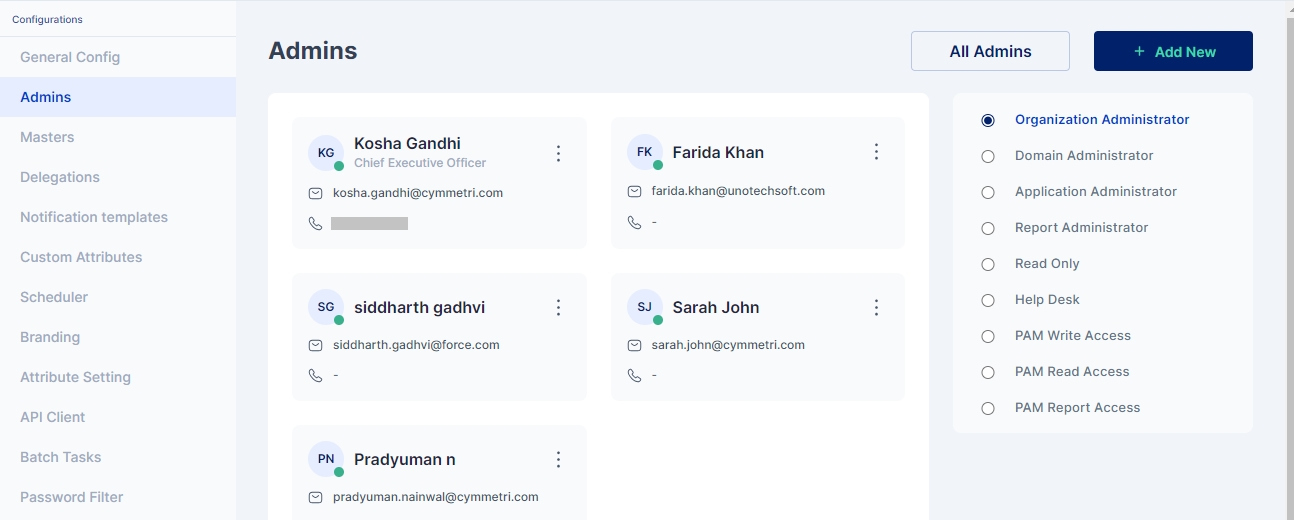
Click on the Configuration menu on the right-hand side
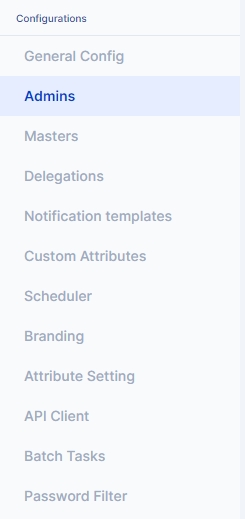
Now, click on the Admins sub-menu within the Configuration menu
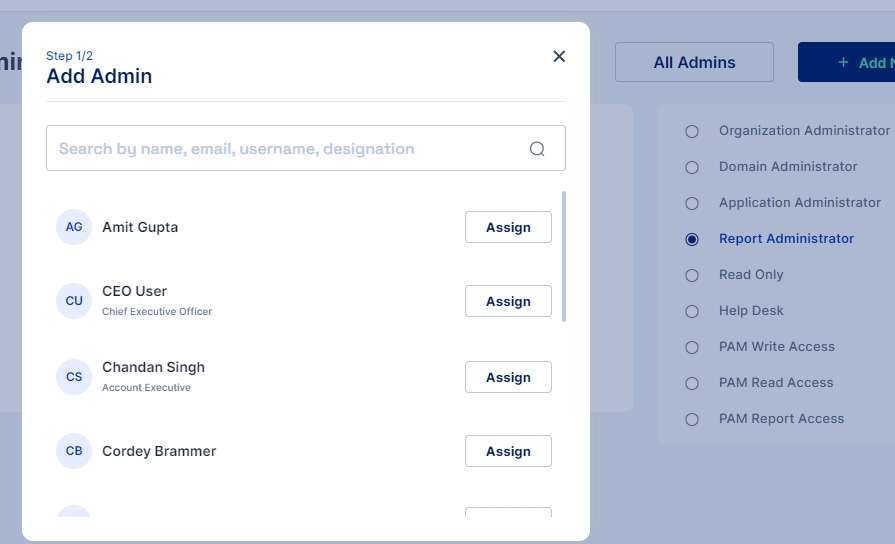
Click on the "+Add New" button to add a new administrator
To assign an administrator role to a user, search for the user and then click the 'Assign' button.
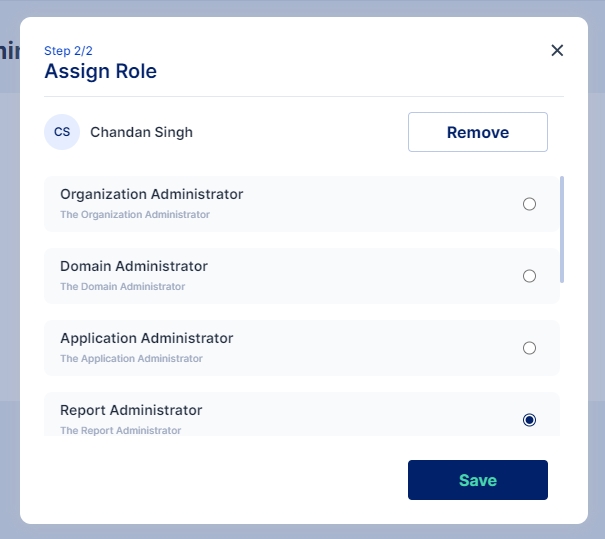
Select the chosen administration role and click on Save
The administrator has been assigned the role of “Report Administrator”.
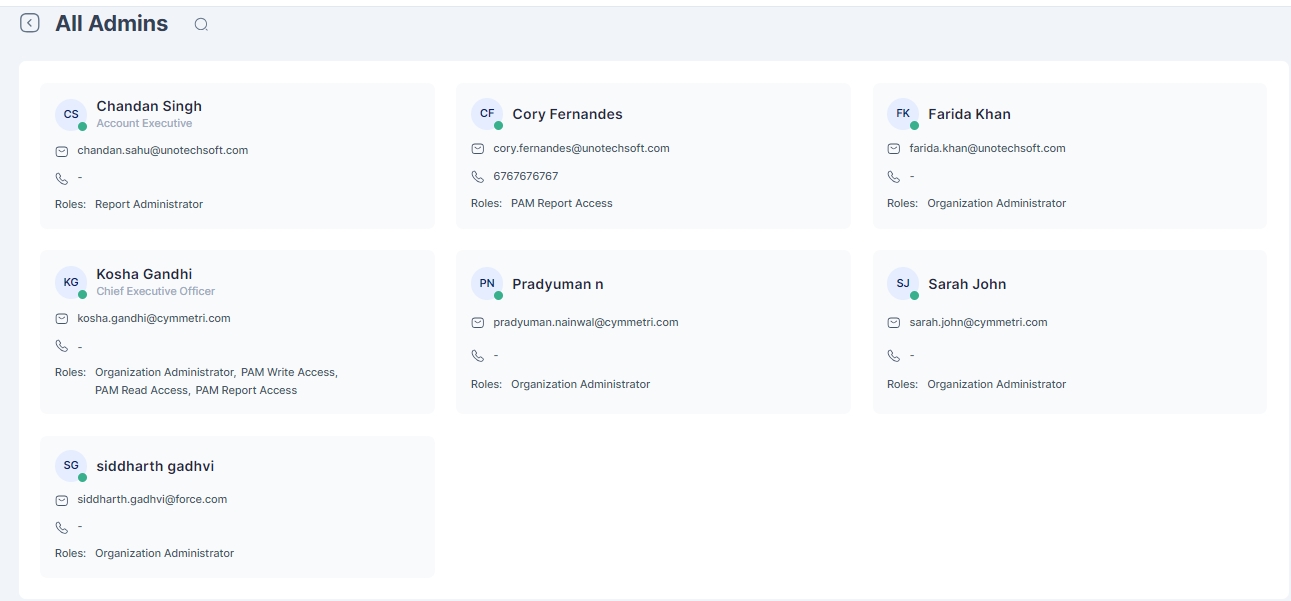
All admins is a section where various Cymmetri admins are displayed to the admin user
Tenant branding in Cymmetri allows you to personalize and enhance the visual identity of your environment. With tenant branding, you can customize the appearance of your platform, including logos, color schemes, and even tailored messages, aligning it with your organization's branding guidelines.
This not only creates a cohesive and professional user experience but also reinforces your brand's presence throughout the Cymmetri environment. It's a powerful tool for organizations looking to maintain a consistent and recognizable image while utilizing Cymmetri's identity and management capabilities.
The Cymmetri platform allows a certain level of customization to your tenant from the administration panel. This includes the ability to modify the default Cymmetri branding scheme to your own Organization’s branding scheme.
Your Organization Name and Tagline
Your Organization Logo
Your Organization Branding Colors (Primary, Secondary, Accent Colors)
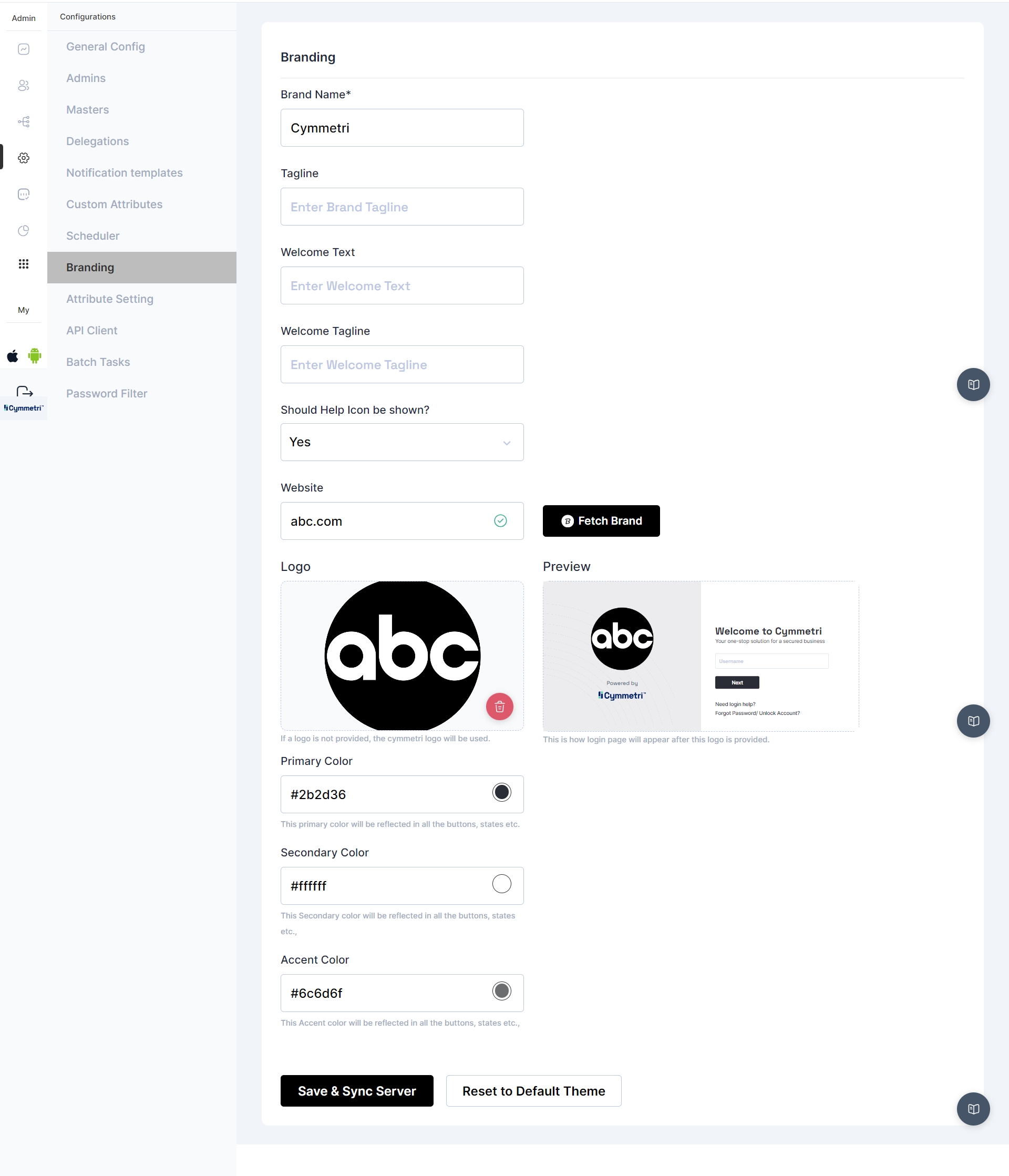
To access the branding menu, first click on the Configuration menu on the left-hand side and then proceed by clicking on the Branding menu item.
Start the configuration by entering your Organization Name and Tag Line
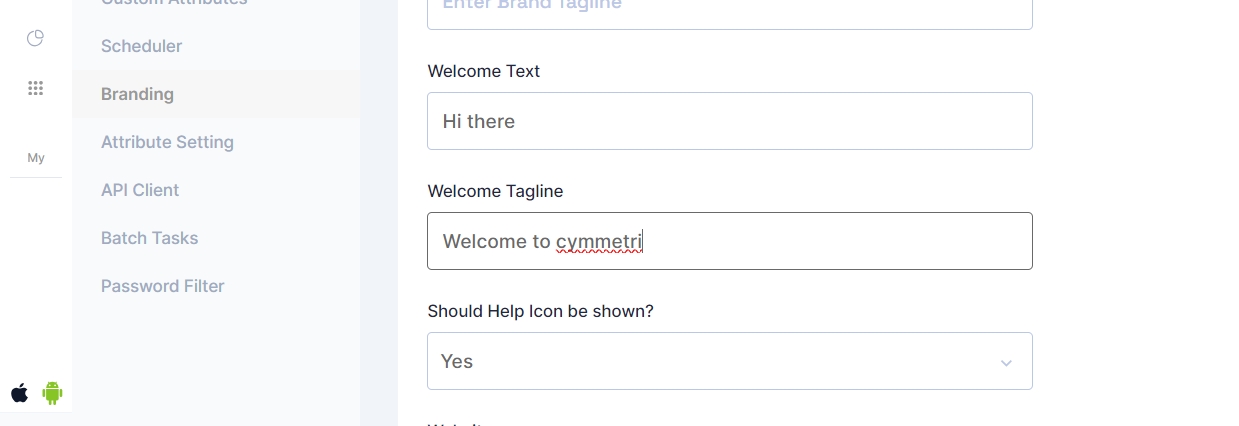
Proceed by adding a Welcome text and Welcome Tagline, and select whether the Cymmetri help icon should be visible to the user or not
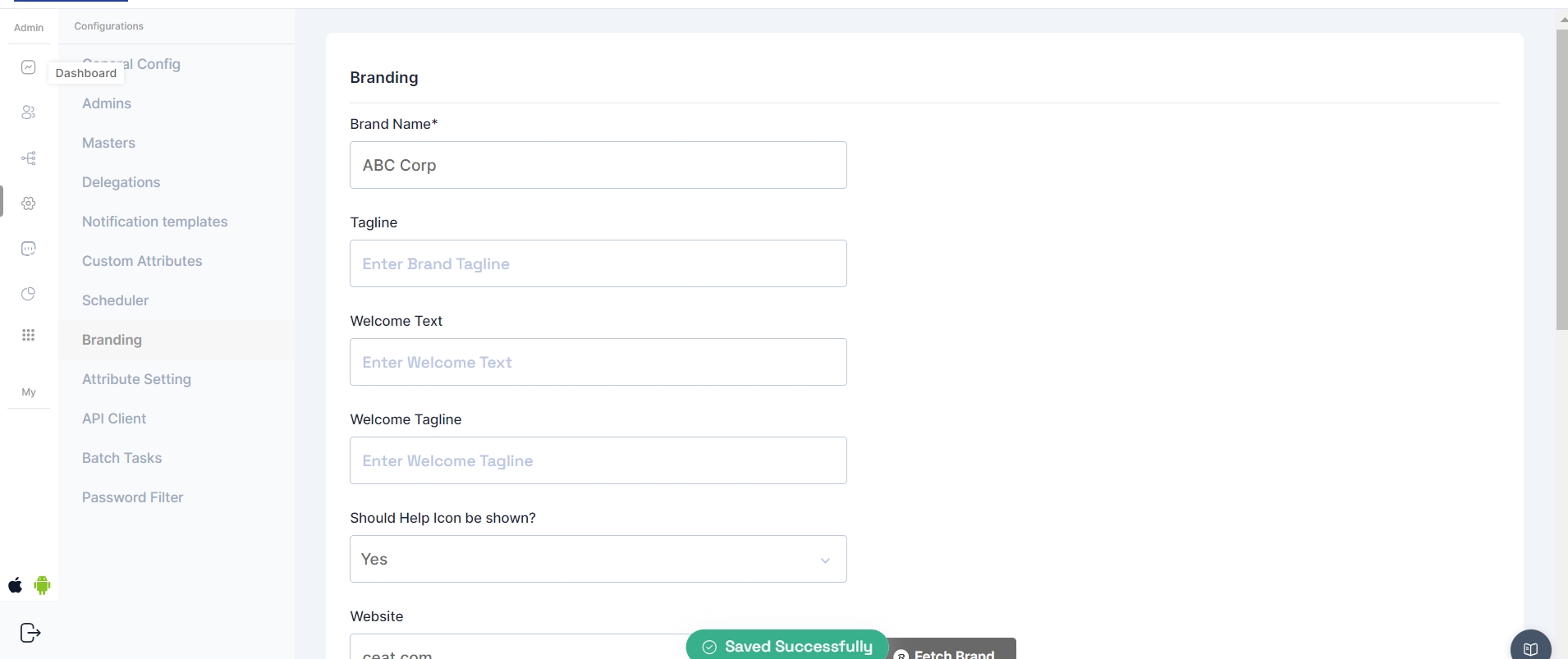
The configuration will be applied in a few seconds to reflect your branding.
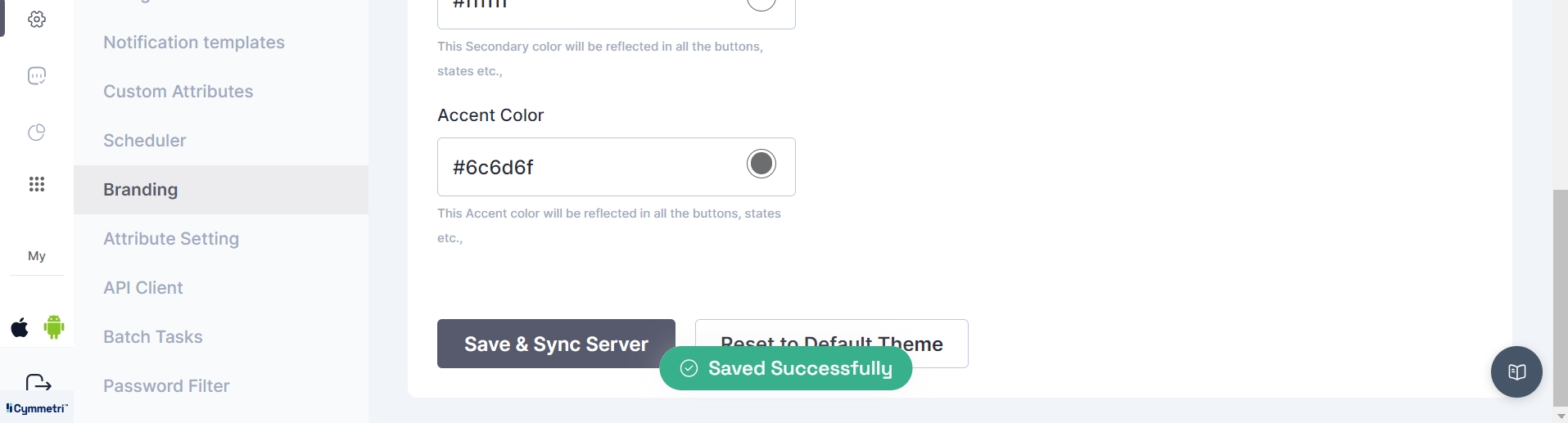
In Cymmetri, the administrator now has the option to select the "Reset to default theme" button, allowing them to revert to the original theme.
The Ticker feature is a powerful communication tool in the Cymmetri platform that allows administrators to broadcast real-time, time-sensitive, text-based messages to users. It's a key component for improving internal communication and enhancing security awareness.
This feature provides a robust channel for broadcasting important updates and alerts, including:
Urgent Announcements: Instantly communicate system-wide announcements, such as new policies or security reminders.
Maintenance Notifications: Inform users about scheduled system maintenance or downtime to minimize disruption.
Targeted Messaging: Administrators can configure rules to broadcast messages to specific user groups or individuals, ensuring relevance and reducing notification fatigue.
Tickers are highly configurable, offering two primary display options to give administrators full control over their communication strategy.
Before Login
This option is designed for broadcasting critical messages that every user must see before they can access the system. These tickers appear directly on the login page and are essential for communicating information like system-wide outages or mandatory security alerts.
To configure a "Before Login" ticker, administrators define the following parameters:
Name: A unique, descriptive name to easily identify the ticker.
Start Date & End Date: Specifies the time frame during which the ticker will be visible.
Show Tickers: Set to Before Login to ensure the message is displayed on the login page.
Status: The state of the ticker, either Active (visible) or Inactive (hidden).
After Login
This option is used for displaying messages on the user's dashboard after they have successfully logged in. It's suitable for general announcements, policy updates, or news that isn't a hard requirement for system access.
The configuration parameters are the same as the "Before Login" option, with one crucial difference: Show Tickers is set to After Login.
A key advantage of the "After Login" option is its support for conditional logic. Administrators can add rules to display messages only to specific users or groups based on attributes like department or role. This ensures communication is highly targeted and relevant.
Notifications are triggered from the Cymmetri platform for various actions occurring on the platform either through direct action by the end-user or by the virtue of some backend action (such as running of a scheduler for a campaign). Cymmetri platform ships with default notification templates listed below-
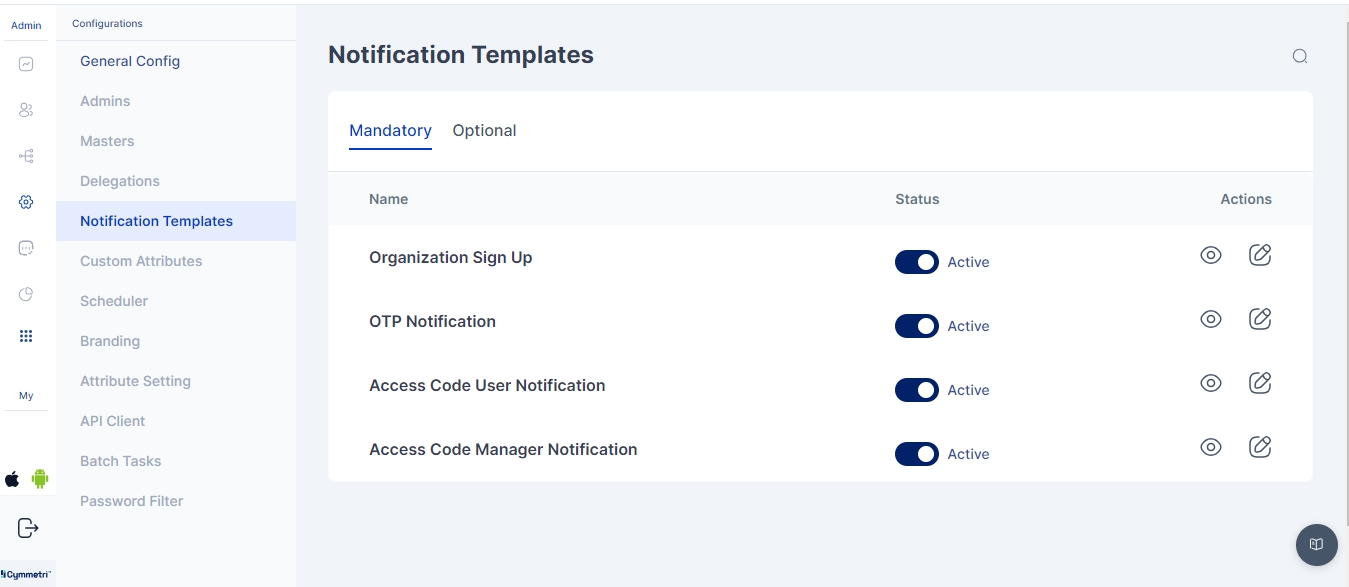
Mandatory Notifications
Sign-up / Registration
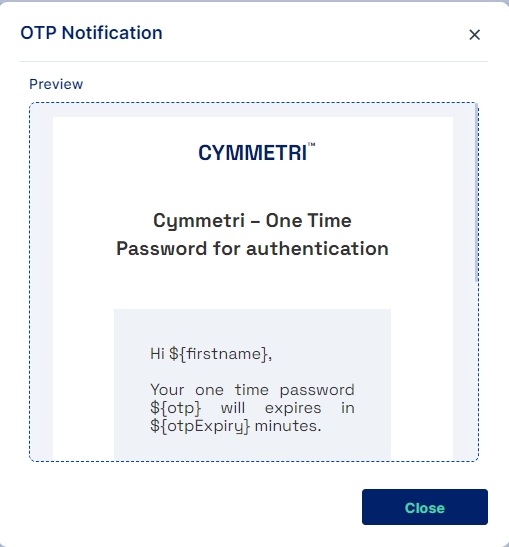
OTP Notification
Custom Attributes may be added for all user entities in your Cymmetri Platform. This allows organizations to add custom user attributes that are used across the applications in the organization.
For example, your organization has a custom attribute that captures and uses the local language of your employees and vendors to provide local services. This attribute may be stored in your Active Directory and may need to be synchronized to your organization’s other applications during the course of an employee or vendor’s employment.
Cymmetri platform allows the administrator to define custom attributes on a tenant-wide level.
Custom attributes can be used at various places, like when creating a user, as a filter when searching for users, and are visible in the other sections of user info
Cymmetri has integrated advanced CAPTCHA validation capabilities to bolster security against automated threats and bot-based attacks. The platform now supports two distinct methods, providing administrators with a flexible approach to securing user interactions.
hCaptcha: This method is a privacy-focused and widely adopted alternative to traditional CAPTCHA. It requires users to perform a simple task (e.g., identifying objects in an image) to prove they are human, effectively blocking bots while maintaining user privacy.
Message: The specific text content to be displayed.


API Client Refers to API Extension.
Proceed by adding your URL to the Website text box and clicking “Fetch Brand”.
If your organization’s branding is available, the logo and the corresponding color scheme will be displayed in the menu below.
If your branding is unavailable, you may configure it yourself by uploading your logo and editing your primary color, secondary color, and accent color.
Click on the Save and Sync Server button to make the branding configuration apply to the entire website.
Access Code Manager Notification
Access Code User Notification
Optional Notifications
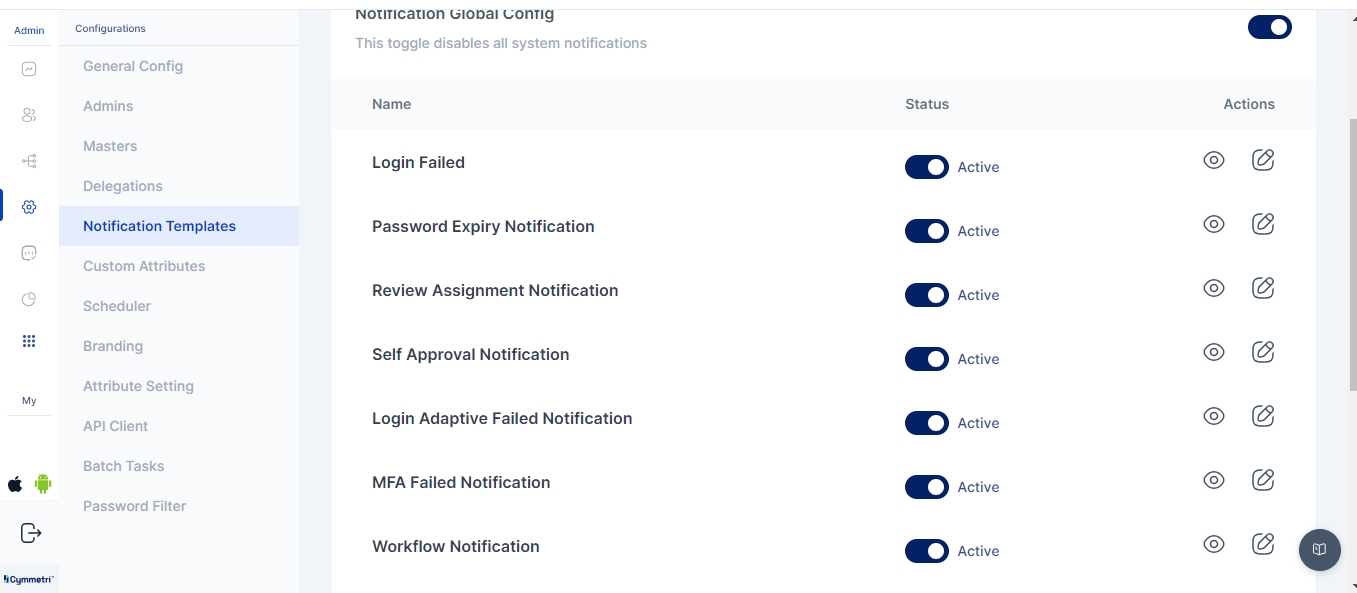
Workflow Notification
Reviewer Notification
Application Access Approval Request
Application Assignment
Delegation Assignee Notification
User Activation
Application Scheduled Deprovisioning
Delegation User Notification
Application Access Approval Request Denied by Approver
Application Access Approval Request Granted
User Notification
Login Failed
Password Expiry Notification
Review Assignment Notification
Self Approval Notification
Login Adaptive Failed Notification
MFA Failed Notification
User Threshold
User attribute update / Profile update
Pending Access Certification Notification
Ad-Hoc Certification Notification
User Risk score changes
Requestee Notification
Requestor Notification
Please note: The above notifications are available out of the box. The system also allows custom notifications to be triggered for specific events using the Cymmetri Webhooks. The custom action trigger can call an existing Cymmetri notification template or a custom template can be included in the webhook code.
The default templates may be modified by the administrator using the following process:
Access the notification templates menu by clicking on the configuration menu on the left-hand side menu bar and then clicking on the Notification templates pop-up menu.
Click on the eye icon to preview the corresponding template
Values in <> anchor tags and ${} reflect macros.
Click on the pencil icon shown above the image to edit the template.
We may treat this template as an email and edit the subject of the email.
By default, the email notification will be sent to the corresponding affected end-user, but selecting the toggle option for “Send notification to Reporting Manager” will also copy the mail to the Reporting Manager of the affected end-user, allowing for offline follow-up for the notification.
The administrator may edit the HTML using the provided HTML editor to add/change any template button/text/background. The macros required for the particular template are already provided in the sample default notification template.
Click on the Save button to save the notification template.
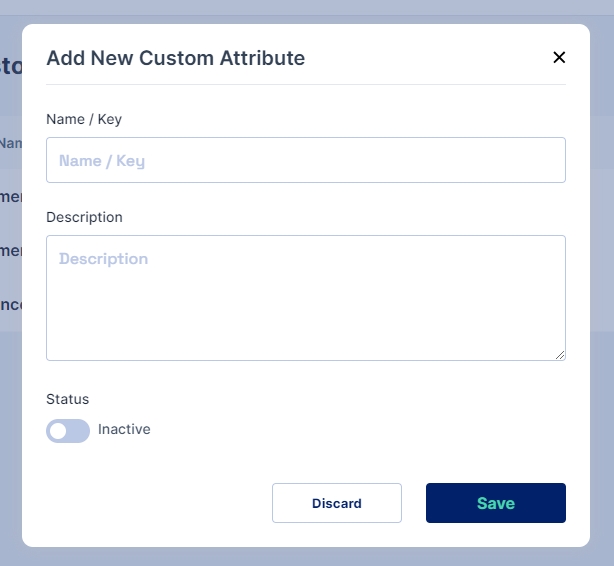
To start configuring custom attributes, click on the Configurations menu on the left-hand side and then click on the Custom Attributes menu.
Click on the Add New button to start adding a custom attribute
Fields to be updated:
Name/ Key: refers to the label assigned to the custom attribute.
Description: allows you to provide additional details or notes about the custom attribute for reference and clarity.
Status: Allows activation of the custom attribute. Only if it is set to active is the attribute available to use in the User Object.
Note: A custom attribute, once created, can only be set to inactive; it cannot be deleted.
Traditional CAPTCHA: This classic method uses distorted text or numbers that users must correctly enter. While this method is effective, it can sometimes be more challenging for users to solve.
These integrations enable Cymmetri to enhance its security posture by providing a robust defense layer, ensuring that user registration and login processes are protected from malicious automated activity.
To enable and configure CAPTCHA, administrators must navigate to the Configuration section and select Captcha Configuration.
From this menu, the administrator has two options:
hCaptcha Type: Selecting this option enables hCaptcha validation, which utilizes simple, interactive tasks for user verification.
Traditional CAPTCHA: Choosing this option will implement the classic method of using distorted text.
The administrator can then save the configuration.
Below is an example of what the Traditional CAPTCHA looks like to an end-user.
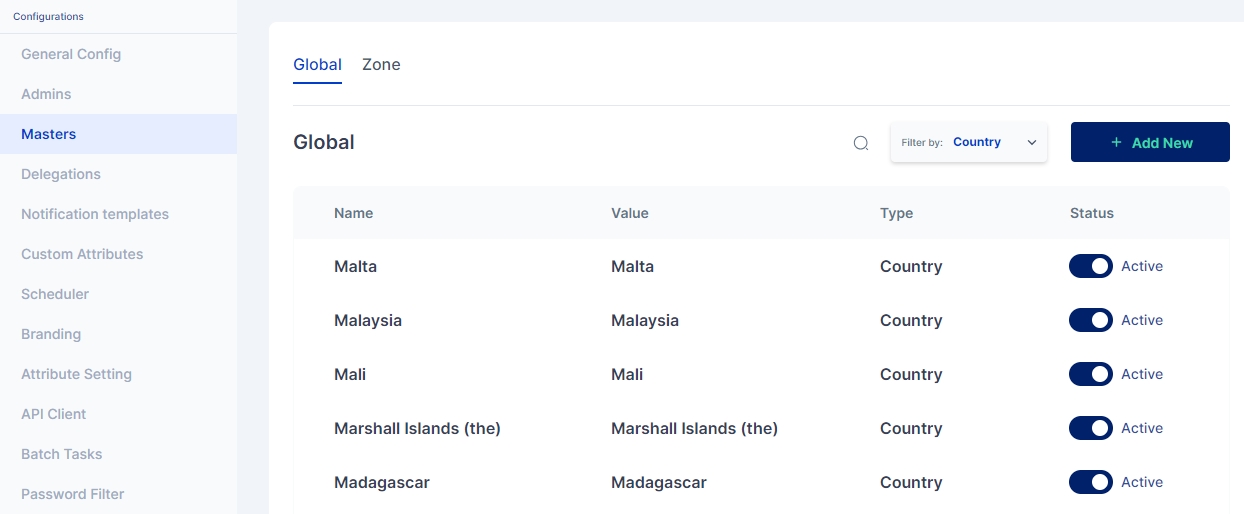
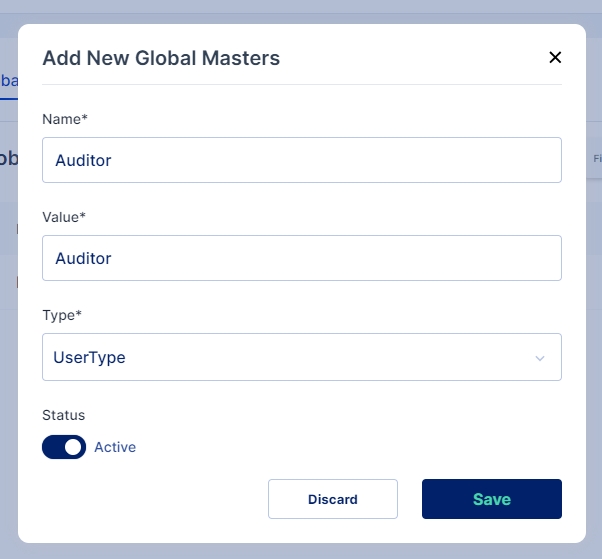
Masters are key-value pairs that can be defined for the entire tenant. The key(name) in this context refers to the label to be shown on the Cymmetri User Interface, and the value is the backend identifier used to reference this field in various processes, rules, and policies defined in the Cymmetri platform.
Cymmetri platform allows for configuring several masters in the system, the major classification among which are Global masters (which allow for creating master key-value pairs that may be used for various situations, such as creating a new department, designation, and other custom attributes for users in the system) and Zone masters (which are network configurations that may be used to whitelist or blacklist user access onto the platform as well as act as a source for adaptive Multi-factor authentication).
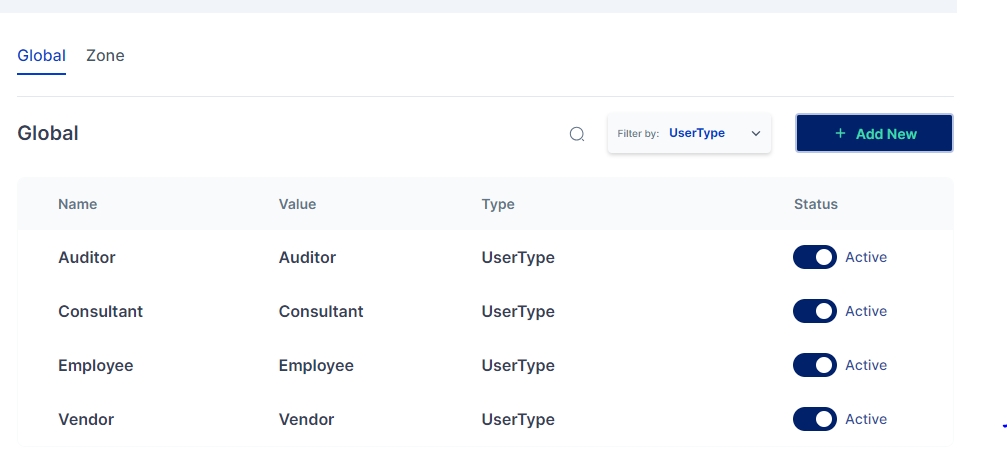
These are system-wide key-value pairs primarily used to setup key-value pairs referring to various masters as given below:
Follow the steps below to Add a New Master:
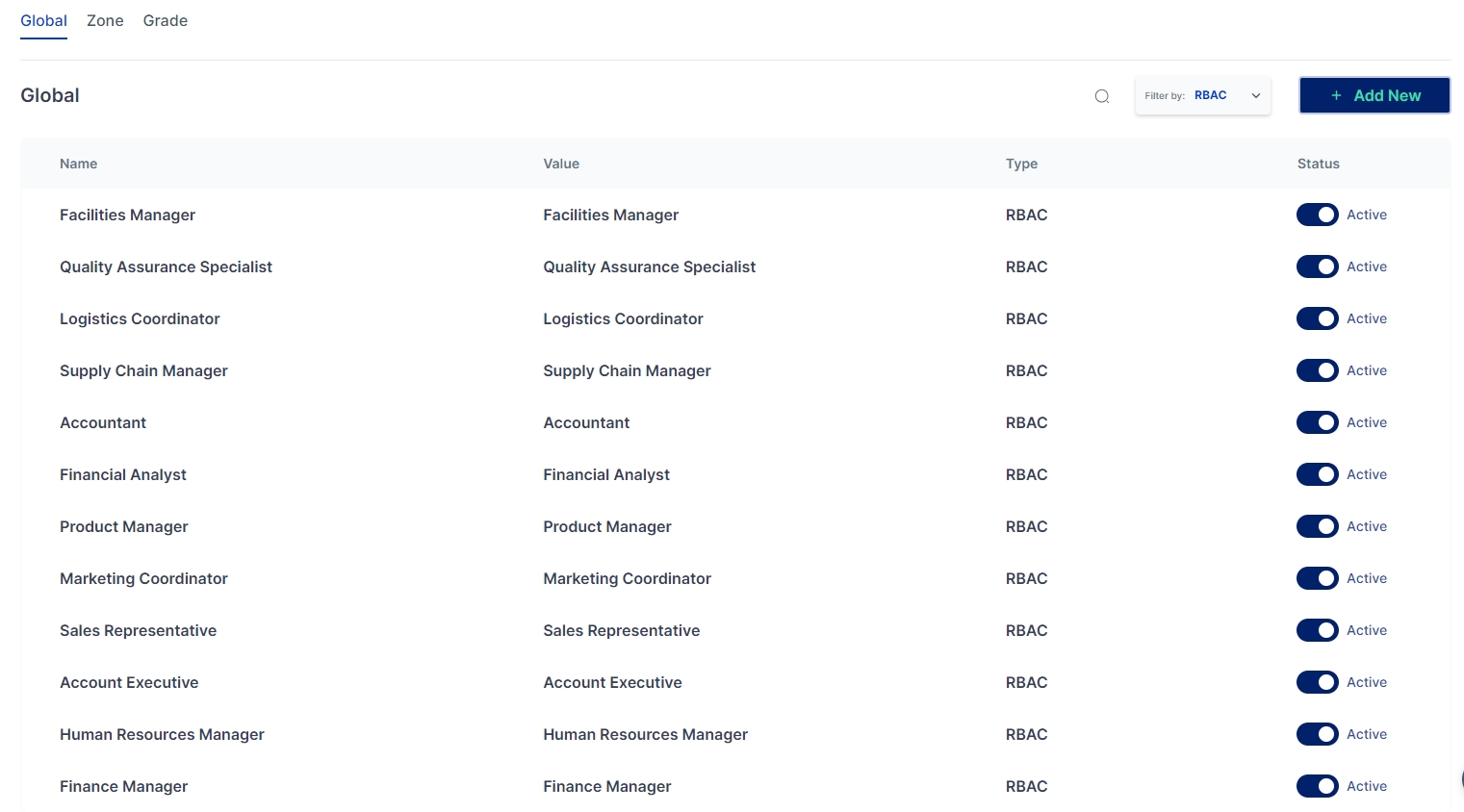
Click on the "+Add New" button to add a new master of any category mentioned above.
Enter the Name and Value for the new Master, then select the type of master you wish to create and enable the active toggle button to make the master active. Once all values are entered, click on the Save button
A new Global Master is successfully created in the selected category
The RBAC Master allows the maintenance of role entitlements for the organization.
Zone masters indicate the network zones that may be used for blacklisting or whitelisting access to the Cymmetri Identity platform deployment. It may also be used for detecting users from certain zones and assigning relevant multi-factor authentication policies.
Zone Name: Used to refer to a zone in other configurations on the Cymmetri platform.
Inactive/Active: Toggle button to check whether the zone is active (configurable as a condition for other rules on the Cymmetri platform).
Gateway IP: Refers to the Gateway IP address for the network zone.
Proxy IPs: Proxy Server IP addresses that may be used to direct to this network or the IP addresses outside of the zone that would indicate a connection from this zone.
CIDR: Refers to the CIDR notation of the subnet of the network that this zone refers to. .
For adding a new Zone Master or for editing an existing one, fill in all the mandatory details on the screen as shown above, click on the enable toggle button, and finally click the “Save” button.
A sample is shown below :
Note: This screenshot shows sample/test data only and must not be used in production
The Grade Master is a Global Master used to define numeric grades that categorize employees and establish hierarchical precedence. Grades are critical for building approval matrices in workflow rules that depend on organizational levels. Here we define Grade Values (numbers) and associated Labels (descriptions).
Numeric grades allow clear precedence ordering.
Lower numbers usually represent higher precedence (e.g., Grade 1 = Director).
Easy comparison (e.g., Grade 2 > Grade 3) makes it suitable for workflows.
Avoids ambiguity that text-only labels would create.
Go to Admin → Configurations → Masters → Grade.
The Grade Master page displays a list of existing grades with:
Precedence (from Grade Value)
Grade Value
Label
Status
Click + Add New.
Enter Grade Value (numeric).
Enter Label.
Set Status (Active/Inactive).
Click the Edit icon.
Update Grade Label, or Status.
Save changes.
Keep Grade Values numeric and unique.
Align numbers with your organizational hierarchy (e.g., 1 = most senior).
Use meaningful labels for clarity.
Set obsolete grades to Inactive rather than deleting them.


The Banner Management feature allows you to display customizable messages or images to users. These banners can be configured to appear either on the login page (before a user authenticates) or within the user portal (after a user logs in). You can define a name, a start and end date, visibility options, and an active status toggle for each banner. This is useful for sharing announcements, reminders, or policy updates with specific audiences.
Prerequisites:
To configure a banner, ensure you have the following:
Image Files: You can upload up to five images. They must be in JPEG, PNG, or JPG format and have a maximum file size of 500 KB each.
Filenames: Each image filename can be up to 30 characters long.


Actions (Edit option)
Click Save.
Country
Country key-value pairs are stored in the system, and are available as drop-downs wherever needed in the system - User attributes, Policies and other mappings.
UserType
UserType is used as one of the conditions while defining authentication policies and as an input in the rule engine.
Department
Department is used as one of the conditions while defining authentication policies and as an input in the rule engine, and also as a user attribute.
Designation
Designation is used as one of the conditions while defining authentication policies and as an input in the rule engine, and also as a user attribute.
RBAC
RBAC (System Roles) is used as one of the conditions while defining authentication policies and as an input in the rule engine, and also as a user attribute.
Grade Value
Numeric value representing the grade. Determines precedence logic. Must be unique.
Yes
Label
A descriptive label for the grade (e.g., “Manager”, “Executive”).
Yes
Status
Active / Inactive toggle. Only active grades can be used in workflows.
Yes


Targeting Conditions: For banners shown After Login, you can set conditions using user attributes such as User Type (e.g., "Employee") or Department (e.g., "HR"). You can use AND/OR logic to create complex rules.
Step 1: Create a New Banner
Navigate to the Configurations section.
Click on Add Banner.
Step 2: Define Banner Details
Enter a descriptive Name for the banner.
Set the Start Date and End Date to control when the banner is active.
Step 3: Select Banner Visibility
Choose whether the banner should appear Before Login or After Login.
After Login Banner:
Upload: Click to upload an image file. You can use drag-and-drop or a manual upload.
URL: Enter a URL to redirect users to a specific page when they click the banner.
Conditions: Apply a set of conditions based on user attributes to ensure the banner is only displayed to a targeted group of users. Once configured, the banner will appear as a pop-up after a user logs in. Clicking the banner will redirect them to the specified URL. Users can close the banner by clicking the cross mark and confirming.
Before Login Banner:
Select the Before Login option and save the changes.
The banner will be displayed on the login page before any authentication occurs.
Clicking the banner will redirect to the specified URL. Users can dismiss the banner by clicking the cross mark.
Annotation provides a centralized mechanism to define and select dynamic approvers for workflows, application access reviews, and group access reviews, enabling dynamic approval routing, which makes it easy to configure and manage.
The Annotation feature, found under the Configurations tab, allows you to designate specific users as approvers for critical identity management operations. By configuring an Annotation and selecting it within a Workflow (say, user creation) or an Access Review Campaign (for application/groups), all associated approval requests are routed directly to the Annotation-defined approver(s). Annotations enable the administrator to easily change the actual user without changing the annotation, which makes it a one-point change that gets applied at all various places where the annotation is used as an approver. With the flexibility of applying to both the application and group, it makes it easy to reuse the annotation and increases its usability.
Note:
Annotation names must be lowercase and cannot contain any special characters.
An annotation with group and application cannot be configured together; it must be configured separately for the group as well as the application
This section outlines how to set up an Annotation and integrate it into a user creation workflow, directing approval requests to your chosen approver.
I. Annotation Setup
Navigate to Configurations: From your product's main navigation, go to Configurations.
This enhancement introduces the Group Review capability within the access review system. This feature provides administrators with a more flexible and targeted approach to initiating access reviews.
Administrators can now initiate comprehensive reviews based on the following criteria:
All Groups: This option enables a comprehensive review of all user access permissions across every group within the system.
Specific Multiple Groups: This provides a focused approach, enabling administrators to select and review permissions for a pre-defined set of groups.
Specific Multiple Applications: This functionality allows for a granular review of user access rights associated with a select number of specific applications.
This new capability streamlines the access review process by enabling more precise and efficient auditing of user permissions, thereby reducing the time and effort required to ensure compliance and security.
Navigate to Identity Governance (IGA): Access the main IGA module from the Cymmetri
Access Group Access Review: From the IGA menu, select the "Group Access Review" option to initiate the configuration process for a group-based campaign.
Go to Campaign: Navigate to the Campaign section within the Group Access Review interface.
Create or Edit Campaign:
Click "Add New" to create a new access review campaign.
Alternatively, select and Edit an existing campaign to modify its settings.
Add Campaign Details: Provide all necessary campaign details, such as the campaign name, description, and schedule.
Select Target Group: In the second step of the campaign setup, choose Groups as the campaign target. Add the specific group that was previously associated with the designated Annotation.
Select Annotation: In the third step, select the Annotation option. From the dropdown menu, choose the specific Annotation created for the group approval process (e.g., groupapprover). This action links the campaign to the predefined approver logic.
Save, Publish, and Run: Complete the campaign setup by clicking Save, then Publish, and finally Run the campaign to initiate the access review.
Approval Request Routing: All access review requests for the targeted group will be automatically routed to the approver defined by the selected Annotation.
Approver Action: The designated approver should perform the following steps:
Log in to Cymmetri using the credentials of the Annotation-assigned approver.
Navigate to the Access Review tab.
d. Filter the view to display Group requests, if applicable.
e. Review all pending access review requests for the specified groups. The approver can then Approve or Reject each request based on their assessment of the user's need for continued access.
A Batch Task in Cymmetri is a configurable, automated job designed to perform bulk operations by executing a specific backend API endpoint. These tasks can be scheduled to run at predefined intervals or be triggered manually. They are commonly used for operations like data synchronization, user lifecycle management (e.g., deactivating inactive accounts), and report generation.
Before you can configure a batch task, you must ensure the following are in place:
API Endpoint: The backend API endpoint that the task will call must be fully developed and operational.
Permissions & Authentication: The API endpoint must have the necessary permissions to perform its intended function, and Cymmetri must be configured with the proper credentials to authenticate with it.
Clear Business Logic: The logic behind the task must be well-defined to ensure it performs the correct operation on the right data set.
Manual Testing: The API endpoint should be manually tested to confirm it works as expected before being integrated into a batch task.
Step 1: Navigate to Batch Tasks
In the Cymmetri platform, go to the Configurations menu.
Select Batch Tasks.
Step 2: Add a New Task
Click the Add Task button to create a new batch task configuration.
Step 3: Define Task Details
Name: Provide a unique, descriptive name for the task.
Description: Enter a brief explanation of the task's purpose.
Endpoint: Specify the particular API operation the task will execute.
Complete Batch Task URL: Provide the full URL of the API endpoint.
Step 4: Configure Scheduling
Use the toggle switch to enable or disable scheduling.
If enabled, configure the task's frequency. You can select from options such as daily, weekly, or monthly runs, or create a custom schedule using a CRON expression.
To generate a custom schedule, use the Generate Cron Expression tool, then click Generate and Apply.
If disabled, the task will only run when manually triggered.
Click Save to finalize the task configuration.
After a task runs, its status and execution details will be recorded in the Audit Log.
Step 5: Execute a Batch Task
To manually run a task, find it in the list of batch tasks.
Click the edit icon next to the task's name.
Select the Run option.
To verify the execution, navigate to the Audit Log, where you can view the status and results of the executed batch task.


Within the Access Review section, go to the Active list to view all pending requests.








Cymmetri framework to extend the out of box use cases and support custom requirements from the platform
The following are the APIs calls.
Important Note:
Purpose: This API is used to create an application hook
URL: http://<tenant_domain>/api/user/listByApplication
Method: POST
Example Request:
Sample Response:
On success:
{
"success": true,
"data": {
"content": [
{
"id": "619ce9a69139ca14885a4717",
"displayName": "John Snow",
"firstName": "John",
"lastName": "Snow",
"email": null,
"mobile": null,
"designation": "Developer",
"status": "ACTIVE",
"profilePic": null,
"login": "john.snow",
"initialLoginPending": true,
"startDate": null,
"endDate": null,
"provStatus": {
"617253cc2fb4b2125b237b75": "SUCCESS_UPDATE"
}
}
],
"pageable": {
"sort": [
{
"direction": "ASC",
"property": "id",
"ignoreCase": false,
"nullHandling": "NATIVE",
"ascending": true,
"descending": false
}
],
"pageNumber": 0,
"pageSize": 10,
"offset": 0,
"paged": true,
"unpaged": false
},
"last": true,
"totalPages": 1,
"totalElements": 1,
"sort": [
{
"direction": "ASC",
"property": "id",
"ignoreCase": false,
"nullHandling": "NATIVE",
"ascending": true,
"descending": false
}
],
"first": true,
"number": 0,
"numberOfElements": 1,
"size": 10,
"empty": false
},
"timestamp": "02-Mar-2022 01:58:57",
"message": null,
"errorCode": null
}
On failure:
Response 1#
{
"data": null,
"success": false,
"errorCode": "PROVSRVC.APPLICATION_NOT_FOUND",
"message": null,
"timestamp": "02-Mar-2022 01:59:39"
}
Purpose: This API is used to get an application hook for the provided application id and type.
URL: http://<tenant_domain>/api/group/groupListByApplication
Method: POST
applicationId: Application id
Example Request:
Sample Response:
On success:
{
"success": true,
"data": {
"offset": 0,
"pageSize": 10,
"totalElements": 1,
"totalPages": 1,
"elements": [
{
"id": "621cdbb7776c95564c0313ab",
"name": "Gold",
"type": "LocalGroup",
"description": "Gold group",
"ouId": "",
"ouName": null,
"parentGroupIds": null,
"directParentGroupId": null,
"userCount": 0,
"appCount": 1
}
],
"pageNumber": 0,
"sort": {
"orders": [
{
"direction": "ASC",
"property": "name"
}
],
"sorted": true
}
},
"timestamp": "03-Mar-2022 05:29:23",
"message": null,
"errorCode": null
}
On failure:
Response 1#
{
"data": null,
"success": false,
"errorCode": "PROVSRVC.APPLICATION_NOT_FOUND",
"message": null,
"timestamp": "03-Mar-2022 05:29:49"
}
Purpose: This API is used to list reconciliation pulls for the provided application ID and keyword.
URL: https://<tenant_domain>/provsrvc/reconciliation/pull/search
Method: POST
applicationId: applicationId
keyword: keyword
Example Request:
Sample Response:
On success:
{
"success": true,
"data": {
"content": [
{
"id": "621cca3f9423002d41cbbed4",
"name": "AD-ADMIN-USERS",
"type": "USER",
"status": "ACTIVE",
"applicationId": "614b5d3489ad96554e89e2ab",
"targetSystemSearchQueryFilter": null,
"idmRepositoryField": "login",
"sourceAttributeName": "cn",
"reconType": "PULL",
"reconMode": "FILTERED_RECONCILIATION",
"reconConditions": {
"TARGET_DELETED_IDM_EXISTS": "IGNORE",
"TARGET_EXTSTS_IDM_EXISTS": "IGNORE",
"TARGET_EXTSTS_IDM_NOT_EXISTS": "PROVISION"
},
"lastRunDateTime": null,
"createdDateTime": "2022-02-28T13:12:31.07",
"updatedDateTime": "2022-03-02T12:45:31.069",
"version": 2
},
...
...
],
"pageable": {
"sort": [
{
"direction": "DESC",
"property": "updatedDateTime",
"ignoreCase": false,
"nullHandling": "NATIVE",
"ascending": false,
"descending": true
}
],
"pageNumber": 0,
"pageSize": 10,
"offset": 0,
"paged": true,
"unpaged": false
},
"last": true,
"totalPages": 1,
"totalElements": 3,
"first": true,
"sort": [
{
"direction": "DESC",
"property": "updatedDateTime",
"ignoreCase": false,
"nullHandling": "NATIVE",
"ascending": false,
"descending": true
}
],
"numberOfElements": 3,
"size": 10,
"number": 0,
"empty": false
},
"timestamp": "03-Mar-2022 08:41:03",
"message": null,
"errorCode": null
}
On failure:
Response 1#
{
"success": false,
"data": null,
"timestamp": "03-Mar-2022 09:06:43",
"message": null,
"errorCode": "INVALID_ARGUMENTS"
}
Response 2#
{
"success": false,
"data": null,
"timestamp": "03-Mar-2022 09:06:43",
"message": null,
"errorCode": "PROVSRVC.UNKNOWN"
}
Purpose: This API is used to list reconciliation push for provided application id and keyword.
URL: http://<tenant_domain>/reconciliation/push/search
Method: POST
applicationId: Application Id.
keyword : keyword
Example Request:
Sample Response:
On success:
{
"success": true,
"data": {
"content": [
{
"id": "62207b1655a2d10f525dc2bf",
"name": "AD-Admin",
"type": "USER",
"status": "ACTIVE",
"applicationId": "614b5d3489ad96554e89e2ab",
"idmSearchQueryFilter": {
"location": null,
"reportingManager": null,
"department": null,
"designation": null,
"group": null,
"email": null,
"mobile": null,
"status": [],
"userType": null,
"locked": false
},
"idmRepositoryField": "login",
"sourceAttributeName": "cn",
"reconType": "PUSH",
"reconMode": "FILTERED_RECONCILIATION",
"reconConditions": {
"IDM_DELETED_TARGET_EXISTS": "IGNORE",
"IDM_EXTSTS_TARGET_EXISTS": "IGNORE",
"IDM_EXTSTS_TARGET_NOT_EXISTS": "PROVISION"
},
"lastRunDateTime": null,
"createdDateTime": "2022-03-03T08:23:50.963",
"updatedDateTime": "2022-03-03T08:23:50.963",
"version": 0
}
…
…
],
"pageable": {
"sort": [
{
"direction": "DESC",
"property": "updatedDateTime",
"ignoreCase": false,
"nullHandling": "NATIVE",
"ascending": false,
"descending": true
}
],
"pageNumber": 0,
"pageSize": 10,
"offset": 0,
"paged": true,
"unpaged": false
},
"last": true,
"totalPages": 1,
"totalElements": 3,
"first": true,
"sort": [
{
"direction": "DESC",
"property": "updatedDateTime",
"ignoreCase": false,
"nullHandling": "NATIVE",
"ascending": false,
"descending": true
}
],
"numberOfElements": 3,
"size": 10,
"number": 0,
"empty": false
},
"timestamp": "03-Mar-2022 08:40:09",
"message": null,
"errorCode": null
}
On failure:
Response 1#
{
"success": false,
"data": null,
"timestamp": "03-Mar-2022 09:06:43",
"message": null,
"errorCode": "INVALID_ARGUMENTS"
}
Response 2#
{
"success": false,
"data": null,
"timestamp": "03-Mar-2022 09:06:43",
"message": null,
"errorCode": "PROVSRVC.UNKNOWN"
}
Purpose: This API is used to list application roles with provided application id and keyword.
URL: http://<tenant_domain>/applicationRole/findAppRolesByApplicationId
Method: POST
application id: applicationId
keyword: keyword
Example Request:
Sample Response:
On success:
{
"success": true,
"data": {
"content": [
{
"id": "621f2996a36e574d3e7ab4a7",
"roleId": "ROLE_ID_101",
"roleName": "ADMIN",
"roleDescreption": "This role is for admin users.",
"applicationId": "614b5d3489ad96554e89e2ab",
"cosoType": "Admin",
"active": false,
"mappedBusinessRoles": [],
"createdDateTime": "2022-03-02T08:23:50.608",
"updatedDateTime": "2022-03-02T13:48:54.189",
"version": 3
},
...
...
],
"pageable": {
"sort": [
{
"direction": "ASC",
"property": "id",
"ignoreCase": false,
"nullHandling": "NATIVE",
"ascending": true,
"descending": false
}
],
"pageNumber": 0,
"pageSize": 10,
"offset": 0,
"paged": true,
"unpaged": false
},
"last": true,
"totalPages": 1,
"totalElements": 3,
"first": true,
"sort": [
{
"direction": "ASC",
"property": "id",
"ignoreCase": false,
"nullHandling": "NATIVE",
"ascending": true,
"descending": false
}
],
"numberOfElements": 3,
"size": 10,
"number": 0,
"empty": false
},
"timestamp": "03-Mar-2022 09:20:03",
"message": null,
"errorCode": null
}
On failure:
Response 1#
{
"success": false,
"data": null,
"timestamp": "03-Mar-2022 09:06:43",
"message": null,
"errorCode": "INVALID_ARGUMENTS"
}
Response 2#
{
"success": false,
"data": null,
"timestamp": "03-Mar-2022 09:06:43",
"message": null,
"errorCode": "PROVSRVC.UNKNOWN"
}
Purpose: This API is used to search PolicymapTenant.
URL: http://<tenant_domain>/policyMapTenant/findAll
Method: POST
tenantApplicationId: Tenant Application Id
objectType: Mapping Object Type
internal: Internal Attribute
external: External Application Attribute
Example Request:
Sample Response:
On success:
{
"success": true,
"data": {
"content": [
{
"id": "61dd1da8db654e41881b5281",
"internal": "lastName",
"external": "sn",
"mandatory": false,
"script": null,
"createdDateTime": "2022-01-11T06:03:20.202",
"updatedDateTime": "2022-01-11T06:03:20.202",
"version": 0,
"default_val": "",
"tenant_applicationId": "61dd1da8db654e41881b5273",
"object_type": "USER",
"isCustom": false,
"scriptEnable": false
}
],
"pageable": {
"sort": [
{
"direction": "DESC",
"property": "internal",
"ignoreCase": false,
"nullHandling": "NATIVE",
"ascending": false,
"descending": true
}
],
"pageNumber": 0,
"pageSize": 10,
"offset": 0,
"paged": true,
"unpaged": false
},
"last": true,
"totalPages": 1,
"totalElements": 1,
"first": true,
"sort": [
{
"direction": "DESC",
"property": "internal",
"ignoreCase": false,
"nullHandling": "NATIVE",
"ascending": false,
"descending": true
}
],
"numberOfElements": 1,
"size": 10,
"number": 0,
"empty": false
},
"timestamp": "03-Mar-2022 07:13:09",
"message": null,
"errorCode": null
}
Purpose: This API is used to get paginated lists with filters.
URL: https://<tenant_domain>/selfservice/api/selfservice/applications
Method: POST
Example Request:
Sample Response:
On success:
{
"success": true,
"data": {
"offset": 0,
"pageSize": 16,
"totalElements": 5,
"totalPages": 1,
"elements": [
{
"endDate": null,
"deprovNotification": false,
"enabled": true,
"tagLine": "Directory service developed by Microsoft",
"id": "617253cc2fb4b2125b237b75",
"name": "Active Directory",
"appUrl": "",
"icon": "iVBORw0KGgoAAAANSUhEUgAAALoAAAC6CAYAAAAZDlfxAAAACXBIWXMAAAsSAAALEgHS3X78AAAgAElEQVR4nO2dCXQU17nnv1tb.....truncated"
}
],
"pageNumber": 0,
"sort": {
"orders": [
{
"direction": "ASC",
"property": "NAME"
}
],
"sorted": true
}
},
"timestamp": "03-Mar-2022 05:41:09",
"message": null,
"errorCode": null
}
Purpose: This API is used to get list of selfservice dashboard new Joiner list of logged in users.
URL: http://<tenant_url>/usersrvc/api/user/getSubOrdinates
Method: POST
Example Request: Need to pass filter as createdFrom and createdTo date time difference for seven day.
Sample Response:
On success:
{
"success": true,
"data": {
"content": [
{
"login": "nilesh",
"displayName": "Nilesh Dhepe",
"userId": "61e947c37dce7c5e40134f1f",
"profilePic": null,
"qualitativeRisk": null,
"sodViolations": null
},
{
"login": "workflow.one",
"displayName": "Test Workflow",
"userId": "61ee658de3a8361263cab0d1",
"profilePic": null,
"qualitativeRisk": null,
"sodViolations": null
},
{
"login": "workflow.two",
"displayName": "Test Workflow",
"userId": "61f7b3b50d84c22f79e1debd",
"profilePic": null,
"qualitativeRisk": null,
"sodViolations": null
},
{
"login": "mrunal",
"displayName": "Mrunal Chaple",
"userId": "61f8cda757a8e27934066a91",
"profilePic": null,
"qualitativeRisk": null,
"sodViolations": null
},
{
"login": "manoj.b",
"displayName": "Manoj Barapatre",
"userId": "61f8d81883126a511188e2ae",
"profilePic": null,
"qualitativeRisk": null,
"sodViolations": null
},
{
"login": "man.ba",
"displayName": "Manoj Bara",
"userId": "61f9160ed9800d4dbbc1baed",
"profilePic": null,
"qualitativeRisk": null,
"sodViolations": null
}
],
"pageable": {
"sort": [
{
"direction": "ASC",
"property": "id",
"ignoreCase": false,
"nullHandling": "NATIVE",
"ascending": true,
"descending": false
}
],
"pageNumber": 0,
"pageSize": 10,
"offset": 0,
"paged": true,
"unpaged": false
},
"last": true,
"totalElements": 6,
"totalPages": 1,
"first": true,
"number": 0,
"sort": [
{
"direction": "ASC",
"property": "id",
"ignoreCase": false,
"nullHandling": "NATIVE",
"ascending": true,
"descending": false
}
],
"numberOfElements": 6,
"size": 10,
"empty": false
},
"timestamp": "04-Mar-2022 10:39:22",
"message": null,
"errorCode": null
}
On failure:
Response 1#
{
"success": true,
"data": null,
"timestamp": "04-Mar-2022 10:39:22",
"message": null,
"errorCode": null
}
Purpose: This API is used to get count of onboard application config incomplete.
URL: http://<tenant_url>/provsrvc/applicationTenant/getApplicationIncompleteConfig
Method: GET
Example Request:
Sample Response:
On success{
"success": true,
"data": 3,
"timestamp": "07-Mar-2022 08:11:48",
"message": null,
"errorCode": null
}
On failure:
Response 1#
{
"success": true,
"data": 0,
"timestamp": "04-Mar-2022 10:39:22",
"message": null,
"errorCode": null
}
Purpose: This API is used to get count of application, admin and user.
URL: http://<tenant_url>/usersrvc/api/user/getOnboardCount
Method: GET
Example Request:
Sample Response:
On success:
{
"success": true,
"data": {
"appCount": 9,
"adminCount": 1,
"userCount": 25
},
"timestamp": "07-Mar-2022 08:11:27",
"message": null,
"errorCode": null
}
On failure:
Response 1#
{
"success": true,
"data": {
"appCount": 0,
"adminCount": 0,
"userCount": 0
},
"timestamp": "07-Mar-2022 08:11:27",
"message": null,
"errorCode": null
}
Purpose: This API is used to get the count of application,role,rule,workflow,password policy,active user,total user and unlogged user.
URL:https://<tenant_url>/usersrvc/api/user/getSystemKPICount
Method: GET
Example Request:
Sample Response:
On success:
{
"success": true,
"data": {
"appCount": 80,
"roleCount": 5,
"activeUserCount": 128,
"totalUserCount": 131,
"unloggedUserCount": 106,
"passwordPolicyCount": 2,
"workflowCount": 3,
"ruleCount": 6
},
"timestamp": "11-Mar-2022 12:42:30",
"message": null,
"errorCode": null
}
On failure:
Response 1#
{
"success": true,
"data": {
"appCount": 0,
"roleCount": 0,
"activeUserCount": 0,
"totalUserCount": 0,
"unloggedUserCount": 0,
"passwordPolicyCount": 0,
"workflowCount": 0,
"ruleCount": 0
},
"timestamp": "11-Mar-2022 12:42:30",
"message": null,
"errorCode": null
}
Purpose: This API is used to get count of requests, claims and my requests.
URL: https://<tenant_url>/workflowsrvc/api/workflowtaskassignment/user/request/claims/count
Method: GET
Example Request:
Sample Response:
On success:
{
"success": true,
"data": {
"requestCount": 12,
"clamisCount": 6,
"requestorCount": 0
},
"timestamp": "10-Mar-2022 07:07:48",
"message": null,
"errorCode": null
}
On failure:
Response 1#
{
"success": true,
"data": {
"requestCount": 0,
"clamisCount": 0,
"requestorCount": 0
},
"timestamp": "04-Mar-2022 10:39:22",
"message": null,
"errorCode": null
}
Purpose: This API is used to search application assigned to user.
URL: https://<tenant_url>/usersrvc/api/user/listApplications
Method: POST
Example Request:
Sample Response:
On success:
{
"success": true,
"data": {
"offset": 0,
"pageSize": 12,
"totalElements": 1,
"totalPages": 1,
"elements": [
{
"appId": "6226051994c38e414989eccd",
"appName": "ServiceNow",
"tagLine": "Workflow Automation Platform",
"status": "",
"appType": "GROUP",
"groupId": "61dea46ef515150ebe517b0d",
"endDate": null,
"provisionEnable": true,
"assignRoles": null
}
],
"pageNumber": 0,
"sort": null
},
"timestamp": "11-Mar-2022 01:06:33",
"message": null,
"errorCode": null
}
Purpose: This API is used to get assigned and unassigned application.
URL: https://<tenant_url>/provsrvc/applicationTenant/applicationListByPage
Method: POST
Example Request:
Sample Response:
On success:
{
"success": true,
"data": {
"content": [
{
"id": "61dbfdf6b30690468b0d4a79",
"appName": "Google Workplace",
"icon": null,
"tagLine": "Integrated Collaboration & Productivity Apps from Google",
"status": "ACTIVE",
"provisionEnable": false,
"ssoEnable": true,
"assigned": true
},
{
"id": "61dd1da8db654e41881b5273",
"appName": "Active Directory",
"icon": null,
"tagLine": "Directory service developed by Microsoft",
"status": "ACTIVE",
"provisionEnable": true,
"ssoEnable": false,
"assigned": true
},
{
"id": "6225f81edd7111640e094f8d",
"appName": "Google Workplace5",
"icon": null,
"tagLine": "Integrated Collaboration & Productivity Apps from Google",
"status": "ACTIVE",
"provisionEnable": true,
"ssoEnable": false,
"assigned": true
}
],
"pageable": {
"sort": [
{
"direction": "DESC",
"property": "displayName",
"ignoreCase": false,
"nullHandling": "NATIVE",
"ascending": false,
"descending": true
}
],
"pageNumber": 0,
"pageSize": 10,
"offset": 0,
"paged": true,
"unpaged": false
},
"totalPages": 2,
"totalElements": 12,
"last": false,
"first": true,
"sort": [
{
"direction": "DESC",
"property": "displayName",
"ignoreCase": false,
"nullHandling": "NATIVE",
"ascending": false,
"descending": true
}
],
"numberOfElements": 10,
"size": 10,
"number": 0,
"empty": false
},
"timestamp": "11-Mar-2022 02:10:38",
"message": null,
"errorCode": null
}
Purpose: This API is used to get list of application of user with there expiry days
URL: https://<tenant_url>/selfservice/api/selfservice/applicationswithexpiry
Method: POST
Example Request:
Sample Response:
On success:
{
"success": true,
"data": {
"offset": 0,
"pageSize": 10,
"totalElements": 3,
"totalPages": 1,
"elements": [
{
"id": "62220c747dab08061e00ba7b",
"name": "Active Directory",
"icon": "iVBORw0KGgoAAAANSUhEUgAAALoAAAC6CAYAAAAZDlfxAAAACXBIWXMAAAsSAAALEgHS3X78AAAgAElEQVR4nO2dCXQU17nnv1tb71q7BUJIzW7Jxo5N6zlOsPD2COBlEsnbiZFf,
"period": 20,
"tagLine": "Directory service developed by Microsoft"
},
{
"id": "62260e904f6c552b8b489c20",
"name": "Google Workplace",
"icon": "iVBORw0KGgoAAAANSUhEUgAAALoAAAC6CAIAAACWbMCmAAAACXBIWXMAAAsSAAALEgHS3X78AAAgAElEQVR4nO2dd3wURf/Ht1xLcnfpvUB6uRRSKFKl9w6C+KgPj2B57D6gD/o8iOVBEaQIiCiIgoBKNSAgVXoPISG910u5S0+u7/xed3vZ27vsXW6T4A+fZ97/ZLM7uzs7+9mZ73xn5nsoAACBQOwDg+UEsR8oFwgLoFwgLIBygbAAygXCAigXCAugXCAsgHKBsADKBcICKBcIC6BcICyAcoGwAMoFwgIoFwgLoFwgLIBygbAAygXCAigXCAugXCAsgHKBsADKBcICKBcIC6BcICyAcoGwAMoFwgIoFwgLoFwgLIBygbAAygXCAigXCAugXCAsgHKBsADKBcICKBcIC6BcICyAcoGwAMoFwgIoFwgLoFwgLIBygbAAygXYQGUC4QFUC4QFkC5QFgA5QKxFwRB/g+Z9ki2AOTkrgAAAABJRU5ErkJggg==",
"period": 5,
"tagLine": "Integrated Collaboration & Productivity Apps from Google"
},
{
"id": "62260e994f6c552b8b489c28",
"name": "PowerShell",
"icon": "iVBORw0KGgoAAAANSUhEUgAAALoAAAC6CAYAAAAZDlfxAT/gAAAABJRU5ErkJggg==",
"period": 4,
"tagLine": "Command-line Shell from Microsoft"
}
],
"pageNumber": 0,
"sort": {
"orders": [
{
"direction": "DESC",
"property": "plannedStart"
}
],
"sorted": true
}
},
"timestamp": "11-Mar-2022 01:42:30",
"message": null,
"errorCode": null
}
Purpose: This API is used to validate password against password policy
URL: https://<tenant_url>/authsrvc/passwordPolicy/pub/validate
Method: POST
Example Request:
Sample Response:
On success:
{"success":true,"data":null,"timestamp":"11-Mar-2022 01:40:38","message":null,"errorCode":null}
On failure:
Response 1#
{"success":false,"data":null,"timestamp":"11-Mar-2022 01:39:40","message":null,"errorCode":"AUTHSRVC.PASSWORD_COMPOSITION_RULE_VIOLATION"}
Purpose: This API is used to get count of application
URL: http://<tenant_url>/api/selfservice/newApplicationsCount
Method: GET
Example Request:
Sample Response:
On success:
{"success": true,"data": 1,"timestamp": "11-Mar-2022 02:13:39","message": null,"errorCode": null}
Purpose: This API is used to get list of campaign
URL: https://<tenant_url>/igsrvc/api/ig/campaign/execution/history/list-summary/reviewer
Method: POST
Example Request:
Sample Response:
On success:
{
"data": {
"content": [
{
"executionId": "61a865c69c60c83eb2d2cf0e",
"name": "Campaign For Bug_w8z89q",
"description": "",
"campaignId": "61a8657c9c60c83eb2d2cf0c",
"revision": 1,
"iteration": 1,
"status": "COMPLETED",
"remarks": "",
"startMode": "MANUAL",
"startDate": "2021-12-02",
"endMode": "MANUAL",
"endDate": "2021-12-02",
"plannedEnd": "2021-12-05",
"totalAssignments": 41,
"pendingAssignments": 41,
"approvedAssignments": 0,
"rejectedAssignments": 0
},
{
"executionId": "6225c00ab21ac3024d5a1d91",
"name": "Campaign For Bug_w8z89q",
"description": "",
"campaignId": "61a8657c9c60c83eb2d2cf0c",
"revision": 1,
"iteration": 2,
"status": "COMPLETED",
"remarks": "",
"startMode": "MANUAL",
"startDate": "2022-03-07",
"endMode": "AUTO",
"endDate": "2022-03-10",
"plannedEnd": "2022-03-10",
"totalAssignments": 40,
"pendingAssignments": 40,
"approvedAssignments": 0,
"rejectedAssignments": 0
}
],
"pageable": {
"sort": [
{
"direction": "ASC",
"property": "startDate",
"ignoreCase": false,
"nullHandling": "NATIVE",
"ascending": true,
"descending": false
}
],
"pageNumber": 0,
"pageSize": 10,
"offset": 0,
"paged": true,
"unpaged": false
},
"totalPages": 1,
"totalElements": 2,
"last": true,
"first": true,
"sort": [
{
"direction": "ASC",
"property": "startDate",
"ignoreCase": false,
"nullHandling": "NATIVE",
"ascending": true,
"descending": false
}
],
"numberOfElements": 2,
"size": 10,
"number": 0,
"empty": false
},
"errorCode": null,
"message": null,
"success": true,
"timestamp": "11-Mar-2022 02:38:11"
}
403
Forbidden
404
Not Found
Update API
200
OK
500
Internal Server Error
401
Unauthorized
403
Forbidden
404
Not Found
curl --location --request POST 'http://api.cymmetri.in/usersrvc/api/user/listByApplication' \
--header 'Content-Type: application/json' \
--header 'Authorization: Bearer eyJhbGciOiJIUzI1NiJ9.eyJzdWIiOiJhZG1pbiIsImRlbGVnYXRlZSI6bnVsbCwiZGVsZWdhdGVlSWQiOm51bGwsImZpcnN0TG9naW4iOmZhbHNlLCJyb2xlcyI6WyJPUkdfQURNSU4iLCJVU0VSIl0sInRlbmFudElkIjoiZ2s0MCIsImV4cCI6MTY0NzAxNzEwNywidXNlcklkIjoiNjE3MDE1YTNjMDQ4MTc1NmI3OThhY2EyIiwiaWF0IjoxNjQ3MDExMTA3fQ.8j711_L--eQHHfen2GPI1qWCmUWRd4n6O44HCZhuRSo' \
--data-raw '{
"keyword":"shu",
"pageNumber": "0",
"pageSize": "10",
"filter": {
"applicationId": "617253cc2fb4b2125b237b75"
},
"sortDirection": "ASC",
"sortOn": [
"id"
]
}'
curl --location --request POST 'http://localhost:9080/api/group/groupListByApplication' \
--header 'Tenant: gk16'
--data-raw '{
"filter": {
"applicationId": "617253cc2fb4b2125b237b75"
},
"keyword": "gold",
"pageNumber": 0,
"pageSize": 10,
"sortDirection": "ASC",
"sortOn": [
"name"
]
}'
curl --location --request POST 'https://mru18.cymmetri.in/provsrvc/reconciliation/pull/search' \
--header 'Tenant: mru18' \
--data-raw '{
"filter": {
"applicationId": "614b5d3489ad96554e89e2ab"
},
"keyword": "",
"pageNumber": 0,
"pageSize": 10,
"sortDirection": "DESC",
"sortOn": [
"updatedDateTime"
]
}'
curl --location --request POST 'https://mru18.cymmetri.in/provsrvc/reconciliation/pull/search' \
--header 'Tenant: mru18' \
--data-raw '{
"filter": {
"applicationId": "614b5d3489ad96554e89e2ab"
},
"keyword": "",
"pageNumber": 0,
"pageSize": 10,
"sortDirection": "DESC",
"sortOn": [
"updatedDateTime"
]
}'
curl --location --request POST 'https://mru18.cymmetri.in/provsrvc/applicationRole/findAppRolesByApplicationId' \
--header 'Tenant: mru18' \
--data-raw '{
"filter": {
"active": true,
"applicationId": "614b5d3489ad96554e89e2ab"
},
"keyword": "",
"pageNumber": 0,
"pageSize": 10,
"sortDirection": "ASC",
"sortOn": [
"id"
]
}'
curl --location --request POST 'api.cymmetri.in/provsrvc/policyMapTenant/findAll' \
--data-raw '{
"keyword": "lastName",
"pageNumber": 0,
"pageSize": 10,
"filter": {
"tenantApplicationId": "61dd1da8db654e41881b5273",
"objectType": "USER"
},
"sortDirection": "DESC",
"sortOn": [
"internal"
]
}'
curl --location --request POST 'https://gk40.cymmetri.in/selfservice/api/selfservice/applications' \
--header 'Connection: keep-alive' \
--header 'Pragma: no-cache' \
--header 'Cache-Control: no-cache' \
--header 'sec-ch-ua: " Not A;Brand";v="99", "Chromium";v="96", "Google Chrome";v="96"' \
--header 'Accept: application/json' \
--header 'content-type: application/json' \
--header 'Authorization: Bearer eyJhbGciOiJIUzI1NiJ9.eyJzdWIiOiJhZG1pbiIsImRlbGVnYXRlZSI6bnVsbCwiZGVsZWdhdGVlSWQiOm51bGwsImZpcnN0TG9naW4iOmZhbHNlLCJyb2xlcyI6WyJPUkdfQURNSU4iLCJVU0VSIl0sInRlbmFudElkIjoiZ2s0MCIsImV4cCI6MTY0NzAxNDY2NywidXNlcklkIjoiNjE3MDE1YTNjMDQ4MTc1NmI3OThhY2EyIiwiaWF0IjoxNjQ3MDA4NjY3fQ.jP2BgjiOVUcdxhImVvdwy18puEylWSSOVHnWA_2hhJU' \
--header 'sec-ch-ua-mobile: ?0' \
--header 'User-Agent: Mozilla/5.0 (X11; Linux x86_64) AppleWebKit/537.36 (KHTML, like Gecko) Chrome/96.0.4664.45 Safari/537.36' \
--header 'sec-ch-ua-platform: "Linux"' \
--header 'Origin: https://gk40.cymmetri.in' \
--header 'Sec-Fetch-Site: same-origin' \
--header 'Sec-Fetch-Mode: cors' \
--header 'Sec-Fetch-Dest: empty' \
--header 'Referer: https://gk40.cymmetri.in/' \
--header 'Accept-Language: en-GB,en-US;q=0.9,en;q=0.8' \
--header 'Cookie: deviceId=6e4caedd-beaf-444c-9312-21b219bb3709; Correlation=B194B86832FB4683ABC43EA6077944E2; Correlation=1E83B306404E4E46A2F6BE7D5A79C3BC; RefreshToken=fc6b1bcc-1c00-4663-b6ef-441051fb2e57; sessionId=75bdbb27-cf85-4102-9ba7-0cc5a84f8fb4' \
--data-raw '{
"direction": "ASC",
"keyword": "",
"pageNumber": 0,
"pageSize": 16,
"sort": "NAME"
}'
curl --location --request POST 'http://api.cymmetri.in/usersrvc/api/user/getSubOrdinates' \
--header 'Content-Type: application/json' \
--header 'Tenant: gk17' \
--header 'UserId: 61e81227aa505f4393b93405' \
--data-raw '{
"filter": {
"createdFrom": "2022-01-04T10:26:56.030Z",
"createdTo": "2022-03-04T10:26:56.030Z"
},
"keyword": "",
"pageNumber": 0,
"pageSize": 10,
"sortDirection": "ASC",
"sortOn": [
"id"
]
}'
curl --location --request GET 'http://api.cymmetri.in/provsrvc/applicationTenant/getApplicationIncompleteConfigCount' \
--header 'Tenant: gk17' \
--header 'Authorization: Bearer eyJhbGciOiJIUzI1NiJ9.eyJzdWIiOiJnazE3IiwiZGVsZWdhdGVlIjpudWxsLCJkZWxlZ2F0ZWVJZCI6bnVsbCwiZmlyc3RMb2dpbiI6ZmFsc2UsInJvbGVzIjpbIk9SR19BRE1JTiIsIlVTRVIiXSwidGVuYW50SWQiOiJnazE3IiwiZXhwIjoxNjQ2NjQ2NjQ0LCJ1c2VySWQiOiI2MWU4MTIyN2FhNTA1ZjQzOTNiOTM0MDUiLCJpYXQiOjE2NDY2NDA2NDR9.snwC7XVRWM5S-gCP53fXXObh9aROFtZDtfOXQCUDPps'
curl --location --request GET 'http://api.cymmetri.in/usersrvc/api/user/getOnboardCount' \
--header 'Content-Type: application/json' \
--header 'Tenant: n23' \
--header 'UserId: 6176c0b33c79f20dde6fd732' \
--header 'Authorization: Bearer eyJhbGciOiJIUzI1NiJ9.eyJzdWIiOiJnazE3IiwiZGVsZWdhdGVlIjpudWxsLCJkZWxlZ2F0ZWVJZCI6bnVsbCwiZmlyc3RMb2dpbiI6ZmFsc2UsInJvbGVzIjpbIk9SR19BRE1JTiIsIlVTRVIiXSwidGVuYW50SWQiOiJnazE3IiwiZXhwIjoxNjQ2NjQ2NjQ0LCJ1c2VySWQiOiI2MWU4MTIyN2FhNTA1ZjQzOTNiOTM0MDUiLCJpYXQiOjE2NDY2NDA2NDR9.snwC7XVRWM5S-gCP53fXXObh9aROFtZDtfOXQCUDPps'
curl --location --request GET 'https://macos.cymmetri.in/usersrvc/api/user/getSystemKPICount' \
--header 'Accept: application/json' \
--header 'Authorization: Bearer eyJhbGciOiJIUzI1NiJ9.eyJzdWIiOiJhZG1pbiIsImRlbGVnYXRlZSI6bnVsbCwiZGVsZWdhdGVlSWQiOm51bGwsImZpcnN0TG9naW4iOmZhbHNlLCJyb2xlcyI6WyJPUkdfQURNSU4iLCJVU0VSIl0sInRlbmFudElkIjoibWFjb3MiLCJleHAiOjE2NDcwMDg1MjUsInVzZXJJZCI6IjYxN2Y4YmIxZDE5MDViNjcyYzQ3N2QzMiIsImlhdCI6MTY0NzAwMjUyNX0.JzhcbfcQXxZoCYH5Mi_HmRCHZf_FVIr3OYrewl7vkjc'
curl --location --request GET 'https://gk40.cymmetri.in/workflowsrvc/api/workflowtaskassignment/user/request/claims/count' \
--header 'Tenant: gk40' \
--header 'Authorization: Bearer eyJhbGciOiJIUzI1NiJ9.eyJzdWIiOiJtcnUxOCIsImRlbGVnYXRlZSI6bnVsbCwiZGVsZWdhdGVlSWQiOm51bGwsImZpcnN0TG9naW4iOmZhbHNlLCJyb2xlcyI6WyJPUkdfQURNSU4iLCJVU0VSIl0sInRlbmFudElkIjoibXJ1MTgiLCJleHAiOjE2NDY2NzE2MTYsInVzZXJJZCI6IjYxNGI1Yjc1ODVmODU0NGYxY2RkOTcxNSIsImlhdCI6MTY0NjY2NTYxNn0.bViQdrikfQD1xdI6Waf_Sk6LOYQh-ilHVq4dMYfVt3E'
curl --location --request POST 'https://s3.cymmetri.in/usersrvc/api/user/listApplications' \
--data-raw '{
"pageNumber": 0,
"pageSize": 20,
"userId": "61d7f610dd92d761faa278f2",
"appName":"service"
}'
curl --location --request POST 'https://s3.cymmetri.in/provsrvc/applicationTenant/applicationListByPage' \
--data-raw '{
"displayName": "",
"order": "DESC",
"pageNo": 0,
"size": 10,
"sortBy": "displayName",
"tag": "",
"userId":"61d7f610dd92d761faa278f2"
}'
curl --location --request POST 'https://as100.cymmetri.in/selfservice/api/selfservice/applicationswithexpiry' \ --header 'Connection: keep-alive' \ --header 'Pragma: no-cache' \ --header 'Cache-Control: no-cache' \ --header 'sec-ch-ua: "Google Chrome";v="93", " Not;A Brand";v="99", "Chromium";v="93"' \ --header 'Accept: application/json' \ --header 'content-type: application/json' \ --header 'Authorization: Bearer eyJhbGciOiJIUzI1NiJ9.eyJzdWIiOiJhZG1pbiIsImRlbGVnYXRlZSI6bnVsbCwiZGVsZWdhdGVlSWQiOm51bGwsImZpcnN0TG9naW4iOmZhbHNlLCJyb2xlcyI6WyJPUkdfQURNSU4iLCJVU0VSIl0sInRlbmFudElkIjoiYXMxMDAiLCJleHAiOjE2NDcwMDk4NzgsInVzZXJJZCI6IjYyMTRkYjdiZDY2MWE1NzM4NmE3MWYxMCIsImlhdCI6MTY0NzAwMzg3OH0.LKZci0Yqeoyn4RHUIyYBFq7O5ATeDuCerZ0QdJ243gY' \ --header 'sec-ch-ua-mobile: ?0' \ --header 'User-Agent: Mozilla/5.0 (X11; Linux x86_64) AppleWebKit/537.36 (KHTML, like Gecko) Chrome/93.0.4577.63 Safari/537.36' \ --header 'sec-ch-ua-platform: "Linux"' \ --header 'Origin: https://as100.cymmetri.in' \ --header 'Sec-Fetch-Site: same-origin' \ --header 'Sec-Fetch-Mode: cors' \ --header 'Sec-Fetch-Dest: empty' \ --header 'Referer: https://as100.cymmetri.in/' \ --header 'Accept-Language: en-GB,en-US;q=0.9,en;q=0.8' \ --header 'Cookie: deviceId=48ba110c-c93c-45ac-92dc-3c6e04e74473; app_73e5c5f8-276b-47bb-a6a5-b6f82a779d79=e689a8da-faa7-46f5-9c7a-2800abdd206a; Correlation=C43A4277E7AB46178F0000BE4DD72F0C; RefreshToken=1ac7eea6-28a6-4bb8-997f-d7381a3dd7d1; sessionId=3417319f-789a-4849-8faa-bf180f4bec14; device=cf7bbf2a-161c-11ec-b3ec-39287c680726' \ --data-raw '{ "keyword": "", "pageNumber": 0, "pageSize": 10, "filter": {}, "sortDirection": "DESC", "sortOn": [ "plannedStart" ] }'
curl 'https://as100.cymmetri.in/authsrvc/passwordPolicy/pub/validate' \
-H 'Connection: keep-alive' \
-H 'Pragma: no-cache' \
-H 'Cache-Control: no-cache' \
-H 'sec-ch-ua: "Google Chrome";v="93", " Not;A Brand";v="99", "Chromium";v="93"' \
-H 'content-type: application/json' \
-H 'sec-ch-ua-mobile: ?0' \
-H 'User-Agent: Mozilla/5.0 (X11; Linux x86_64) AppleWebKit/537.36 (KHTML, like Gecko) Chrome/93.0.4577.63 Safari/537.36' \
-H 'tenant: as100' \
-H 'sec-ch-ua-platform: "Linux"' \
-H 'Accept: */*' \
-H 'Origin: https://as100.cymmetri.in' \
-H 'Sec-Fetch-Site: same-origin' \
-H 'Sec-Fetch-Mode: cors' \
-H 'Sec-Fetch-Dest: empty' \
-H 'Referer: https://as100.cymmetri.in/' \
-H 'Accept-Language: en-GB,en-US;q=0.9,en;q=0.8' \
-H 'Cookie: deviceId=fa83c4b1-7c85-467d-9b46-ffbc70efad97; Correlation=9928D5133AED419CBC01591B56483953; app_73e5c5f8-276b-47bb-a6a5-b6f82a779d79=e689a8da-faa7-46f5-9c7a-2800abdd206a; device=cf7bbf2a-161c-11ec-b3ec-39287c680726' \
--data-raw '{"password":"U2FsdGVkX191zbRQpSQz+rdxyAacEqD1G5Mx5wKtPV5ElwKZu7/TFHFLuCNH+v63G8k7sTFDa5gNYG9SQ+0ix4eZdTvLcJbELGm2yjUWjx2a6jH3JnP/USl2efCC9nDvufmqUhSbIPA0Nc1PZUqM+PPk+TpCFSoKtKwBPWeBa/LYjlYt11u++aTuVGsd/rOaWJxqINPRHIk6Ax89LfhM8+H6VKc4+ybfearoCJgHWCPE/X566hiYZJEKcMGe7u0OpUzGUMlyguBtfYlWlT7tcdP6x/rXlqs8vNTLk/HboYLv10UkB0ifsQ64c7fSQ/ofZKjQlqehpP4+SzIi4OiqRQikP9MOkKZWl9YJdGXZs+mUuzfEs9UGINMYBk1hSCq6xGb9mfE0vyFeVAyY/6oGgQ==","login":"totp","userId":"6214def0a251e06721ed8594"}' \
--compressed
curl --location --request GET 'http://localhost:8080/api/selfservice/newApplicationsCount' \
--header 'Connection: keep-alive' \
--header 'Pragma: no-cache' \
--header 'Cache-Control: no-cache' \
--header 'sec-ch-ua: " Not A;Brand";v="99", "Chromium";v="99", "Google Chrome";v="99"' \
--header 'Accept: application/json' \
--header 'content-type: application/json' \
--header 'Authorization: Bearer eyJhbGciOiJIUzI1NiJ9.eyJzdWIiOiJhZG1pbiIsImRlbGVnYXRlZSI6bnVsbCwiZGVsZWdhdGVlSWQiOm51bGwsImZpcnN0TG9naW4iOmZhbHNlLCJyb2xlcyI6WyJPUkdfQURNSU4iLCJVU0VSIl0sInRlbmFudElkIjoiZ2s0MCIsImV4cCI6MTY0Njc0OTkzMiwidXNlcklkIjoiNjE3MDE1YTNjMDQ4MTc1NmI3OThhY2EyIiwiaWF0IjoxNjQ2NzQzOTMyfQ.puFKgrNoHZtRl6P4LxzFd9KQM_-EB-45DqqP4zywws8' \
--header 'sec-ch-ua-mobile: ?0' \
--header 'User-Agent: Mozilla/5.0 (X11; Linux x86_64) AppleWebKit/537.36 (KHTML, like Gecko) Chrome/99.0.4844.51 Safari/537.36' \
--header 'sec-ch-ua-platform: "Linux"' \
--header 'Sec-Fetch-Site: same-origin' \
--header 'Sec-Fetch-Mode: cors' \
--header 'Sec-Fetch-Dest: empty' \
--header 'Referer: https://gk40.cymmetri.in/' \
--header 'Accept-Language: en-GB,en-US;q=0.9,en;q=0.8' \
--header 'Cookie: deviceId=6e4caedd-beaf-444c-9312-21b219bb3709; Correlation=B194B86832FB4683ABC43EA6077944E2; app_73e5c5f8-276b-47bb-a6a5-b6f82a779d79=e689a8da-faa7-46f5-9c7a-2800abdd206a; device=41b5bf50-9def-11ec-8665-953ee8af105c; Correlation=1B9449F921B043B9B513E99D253894CE; RefreshToken=b8ada8a1-d089-4a39-b3e1-72c04ce202fe; sessionId=130e95df-69a5-4462-a8b5-c04b53e97e64' \
--header 'Tenant: gk40' \
--header 'userId: 617015a3c0481756b798aca2'
curl --location --request POST 'https://gk40.cymmetri.in/igsrvc/api/ig/campaign/execution/history/list-summary/reviewer' \
--header 'Connection: keep-alive' \
--header 'Pragma: no-cache' \
--header 'Cache-Control: no-cache' \
--header 'sec-ch-ua: " Not A;Brand";v="99", "Chromium";v="99", "Google Chrome";v="99"' \
--header 'Accept: application/json' \
--header 'content-type: application/json' \
--header 'Authorization: Bearer eyJhbGciOiJIUzI1NiJ9.eyJzdWIiOiJhZG1pbiIsImRlbGVnYXRlZSI6bnVsbCwiZGVsZWdhdGVlSWQiOm51bGwsImZpcnN0TG9naW4iOmZhbHNlLCJyb2xlcyI6WyJPUkdfQURNSU4iLCJVU0VSIl0sInRlbmFudElkIjoiZ2s0MCIsImV4cCI6MTY0NzAxNDY2NywidXNlcklkIjoiNjE3MDE1YTNjMDQ4MTc1NmI3OThhY2EyIiwiaWF0IjoxNjQ3MDA4NjY3fQ.jP2BgjiOVUcdxhImVvdwy18puEylWSSOVHnWA_2hhJU' \
--header 'sec-ch-ua-mobile: ?0' \
--header 'User-Agent: Mozilla/5.0 (X11; Linux x86_64) AppleWebKit/537.36 (KHTML, like Gecko) Chrome/99.0.4844.51 Safari/537.36' \
--header 'sec-ch-ua-platform: "Linux"' \
--header 'Origin: https://gk40.cymmetri.in' \
--header 'Sec-Fetch-Site: same-origin' \
--header 'Sec-Fetch-Mode: cors' \
--header 'Sec-Fetch-Dest: empty' \
--header 'Referer: https://gk40.cymmetri.in/' \
--header 'Accept-Language: en-GB,en-US;q=0.9,en;q=0.8' \
--header 'Cookie: deviceId=6e4caedd-beaf-444c-9312-21b219bb3709; Correlation=B194B86832FB4683ABC43EA6077944E2; Correlation=C27A4466A21046309B58FD53AEF4A2C5; RefreshToken=4ec80313-bed3-44e5-9081-33eb9ba301f2; sessionId=32ceee83-781e-45d6-9c2c-2acc8741a944' \
--data-raw '{
"filter": {
"campaignName": "Campaign For"
},
"keyword": "",
"pageNumber": 0,
"pageSize": 10,
"sortDirection": "ASC",
"sortOn": [
"startDate"
]
}'
API
Status
Error Code
Message
Create API
200
OK
500
Internal Server Error
401
Unauthorized


