> For the complete documentation index, see [llms.txt](https://help.cymmetri.io/llms.txt). Markdown versions of documentation pages are available by appending `.md` to page URLs; this page is available as [Markdown](https://help.cymmetri.io/getting-started/personalization/annotations.md).
# Annotations
Annotation provides a centralized mechanism to define and select dynamic approvers for workflows, application access reviews, and group access reviews, enabling dynamic approval routing, which makes it easy to configure and manage.
The Annotation feature, found under the Configurations tab, allows you to designate specific users as approvers for critical identity management operations. By configuring an Annotation and selecting it within a Workflow (say, user creation) or an Access Review Campaign (for application/groups), all associated approval requests are routed directly to the Annotation-defined approver(s). Annotations enable the administrator to easily change the actual user without changing the annotation, which makes it a one-point change that gets applied at all various places where the annotation is used as an approver. With the flexibility of applying to both the application and group, it makes it easy to reuse the annotation and increases its usability.
Note:
1. Annotation names must be lowercase and cannot contain any special characters.
2. An annotation with group and application cannot be configured together; it must be configured separately for the group as well as the application
### Step-by-Step Guide
#### A. Configuring Annotation for User Creation Workflow
This section outlines how to set up an Annotation and integrate it into a user creation workflow, directing approval requests to your chosen approver.
**I. Annotation Setup**
Navigate to Configurations: From your product's main navigation, go to Configurations.
### Annotation for Group Review
This enhancement introduces the Group Review capability within the access review system. This feature provides administrators with a more flexible and targeted approach to initiating access reviews.
Administrators can now initiate comprehensive reviews based on the following criteria:
* All Groups: This option enables a comprehensive review of all user access permissions across every group within the system.
* Specific Multiple Groups: This provides a focused approach, enabling administrators to select and review permissions for a pre-defined set of groups.
* Specific Multiple Applications: This functionality allows for a granular review of user access rights associated with a select number of specific applications.
This new capability streamlines the access review process by enabling more precise and efficient auditing of user permissions, thereby reducing the time and effort required to ensure compliance and security.
#### Campaign Configuration
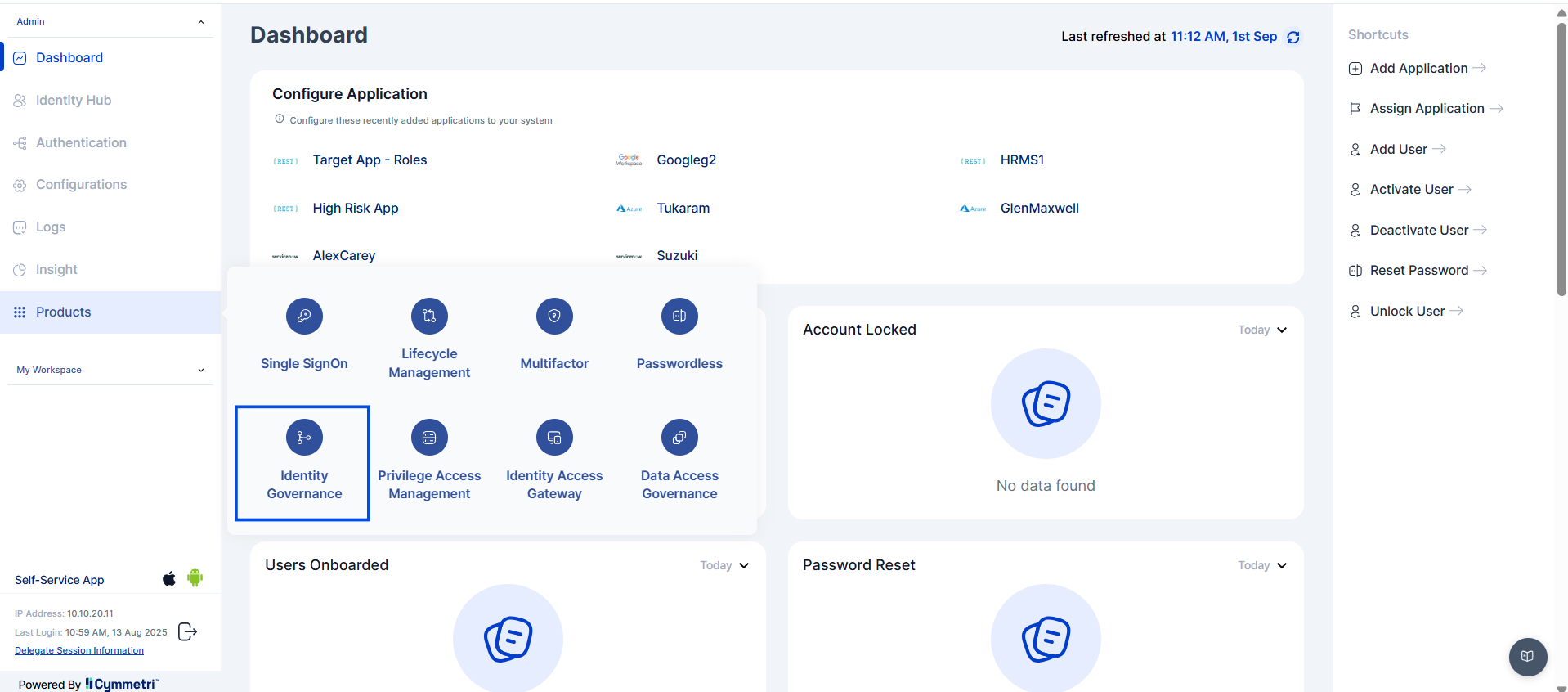
Navigate to Identity Governance (IGA): Access the main IGA module from the Cymmetri
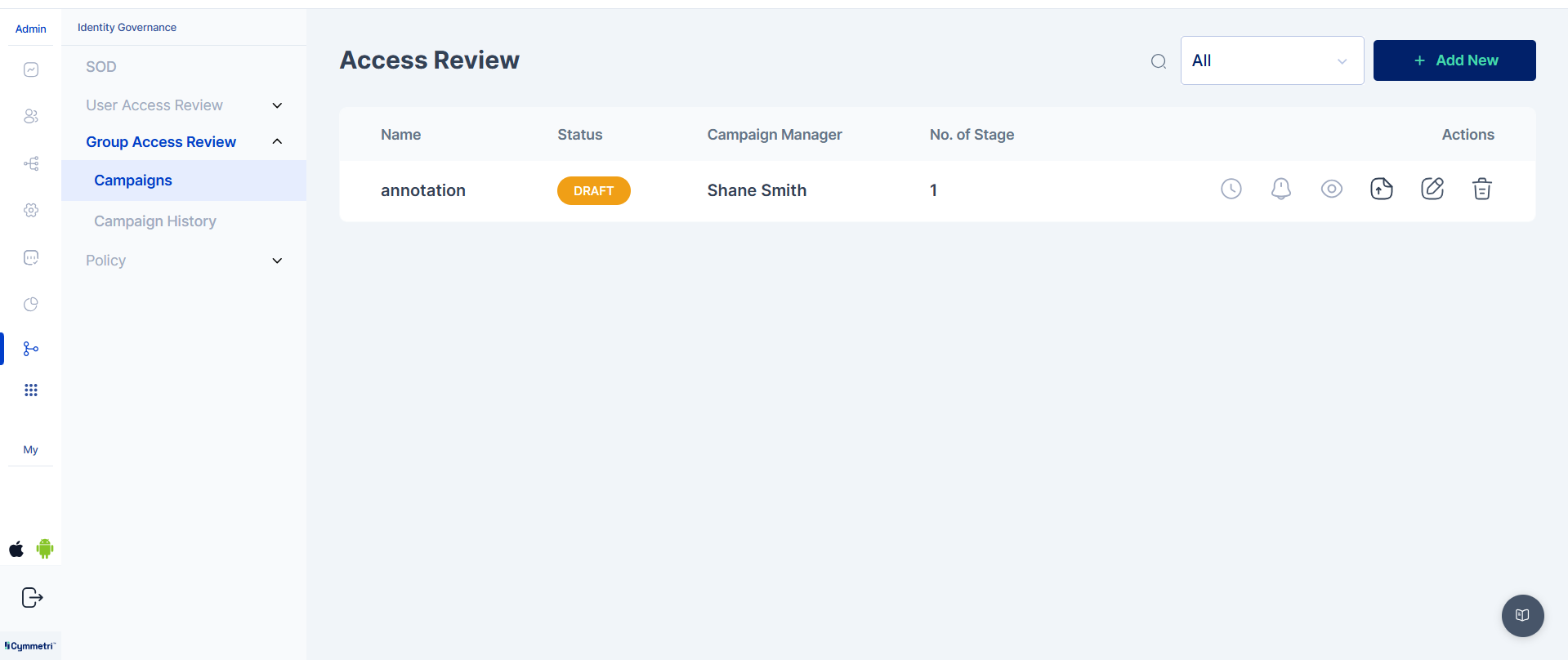
1. Access Group Access Review: From the IGA menu, select the "Group Access Review" option to initiate the configuration process for a group-based campaign.
2. Go to Campaign: Navigate to the Campaign section within the Group Access Review interface.
3. Create or Edit Campaign:
4. Click "Add New" to create a new access review campaign.
Alternatively, select and Edit an existing campaign to modify its settings.
**Add Campaign Details**: Provide all necessary campaign details, such as the campaign name, description, and schedule.
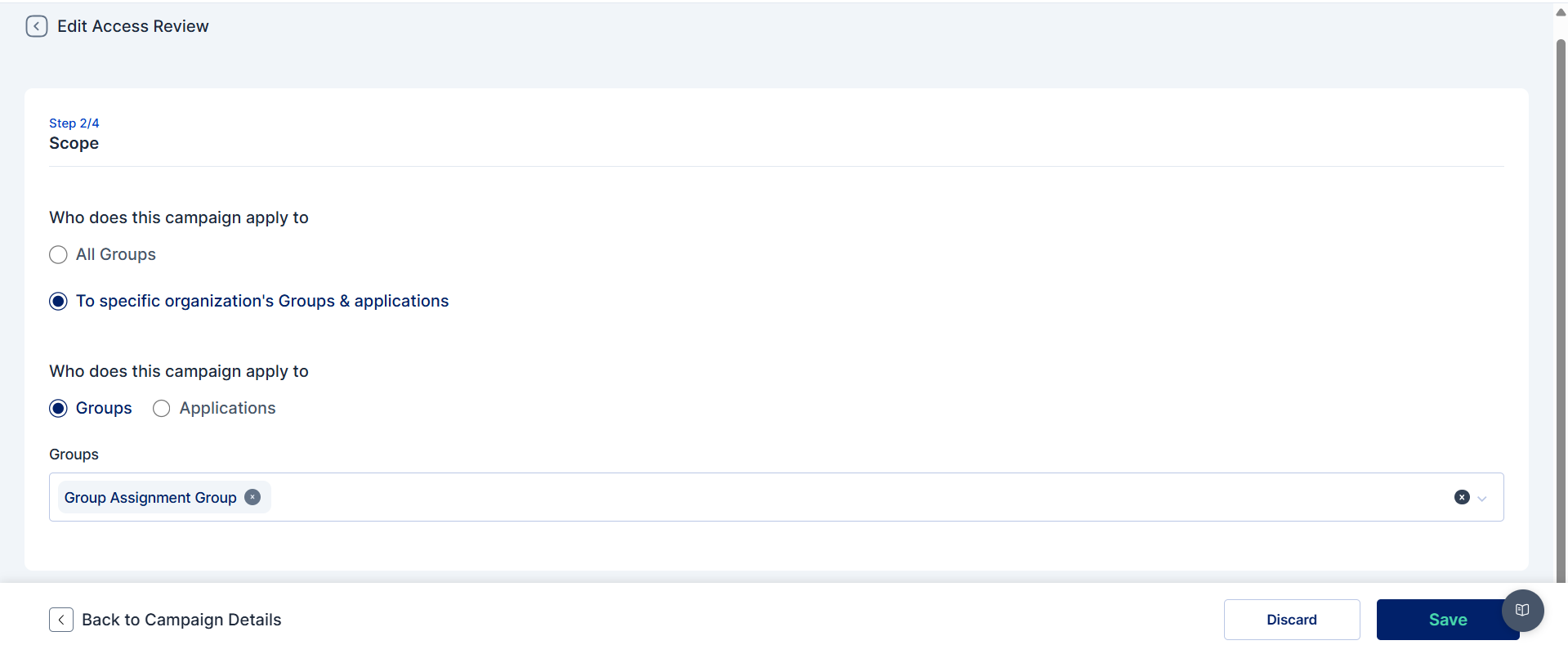
**Select Target Group**: In the second step of the campaign setup, choose Groups as the campaign target. Add the specific group that was previously associated with the designated Annotation.
**Select Annotation**: In the third step, select the Annotation option. From the dropdown menu, choose the specific Annotation created for the group approval process (e.g., groupapprover). This action links the campaign to the predefined approver logic.
**Save, Publish, and Run**: Complete the campaign setup by clicking Save, then Publish, and finally Run the campaign to initiate the access review.
#### Access Review and Approval Process
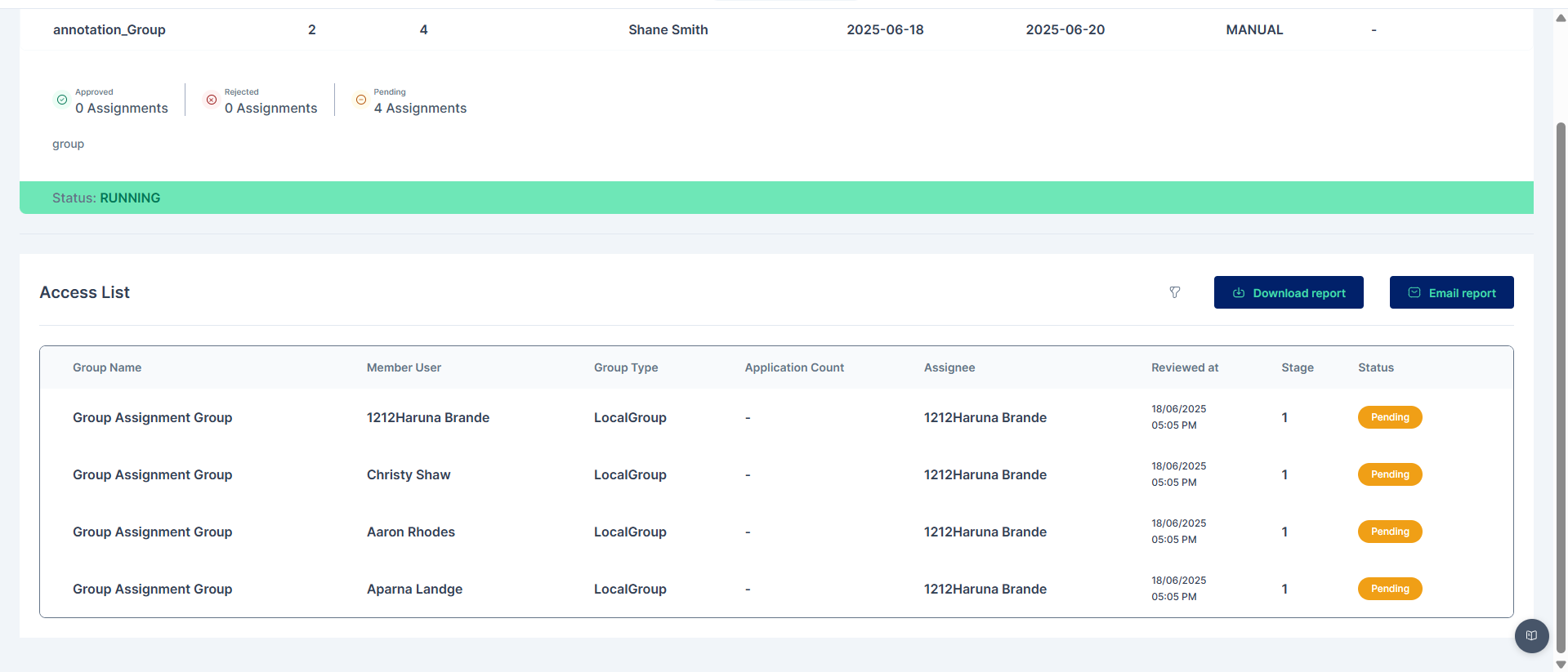
1. **Approval Request Routing**: All access review requests for the targeted group will be automatically routed to the approver defined by the selected Annotation.
2. **Approver Action**: The designated approver should perform the following steps:
1. Log in to Cymmetri using the credentials of the Annotation-assigned approver.
2. Navigate to the Access Review tab.
3. Within the Access Review section, go to the Active list to view all pending requests.
d. Filter the view to display Group requests, if applicable.
e. Review all pending access review requests for the specified groups. The approver can then Approve or Reject each request based on their assessment of the user's need for continued access.