> For the complete documentation index, see [llms.txt](https://help.cymmetri.io/llms.txt). Markdown versions of documentation pages are available by appending `.md` to page URLs; this page is available as [Markdown](https://help.cymmetri.io/getting-started/personalization/batch-tasks.md).
# Batch Tasks
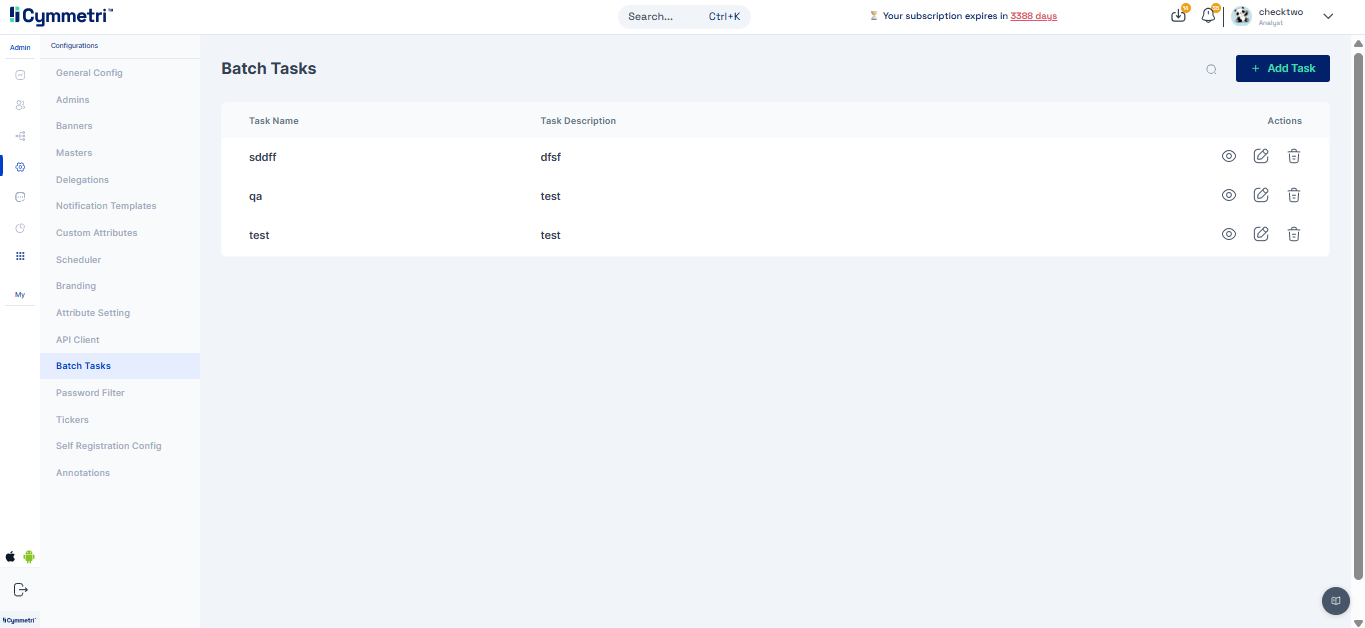
A Batch Task in Cymmetri is a configurable, automated job designed to perform bulk operations by executing a specific backend API endpoint. These tasks can be scheduled to run at predefined intervals or be triggered manually. They are commonly used for operations like data synchronization, user lifecycle management (e.g., deactivating inactive accounts), and report generation.
#### Prerequisites:
Before you can configure a batch task, you must ensure the following are in place:
* **API Endpoint**: The backend API endpoint that the task will call must be fully developed and operational.
* **Permissions & Authentication**: The API endpoint must have the necessary permissions to perform its intended function, and Cymmetri must be configured with the proper credentials to authenticate with it.
* **Clear Business Logic**: The logic behind the task must be well-defined to ensure it performs the correct operation on the right data set.
* **Manual Testing**: The API endpoint should be manually tested to confirm it works as expected before being integrated into a batch task.
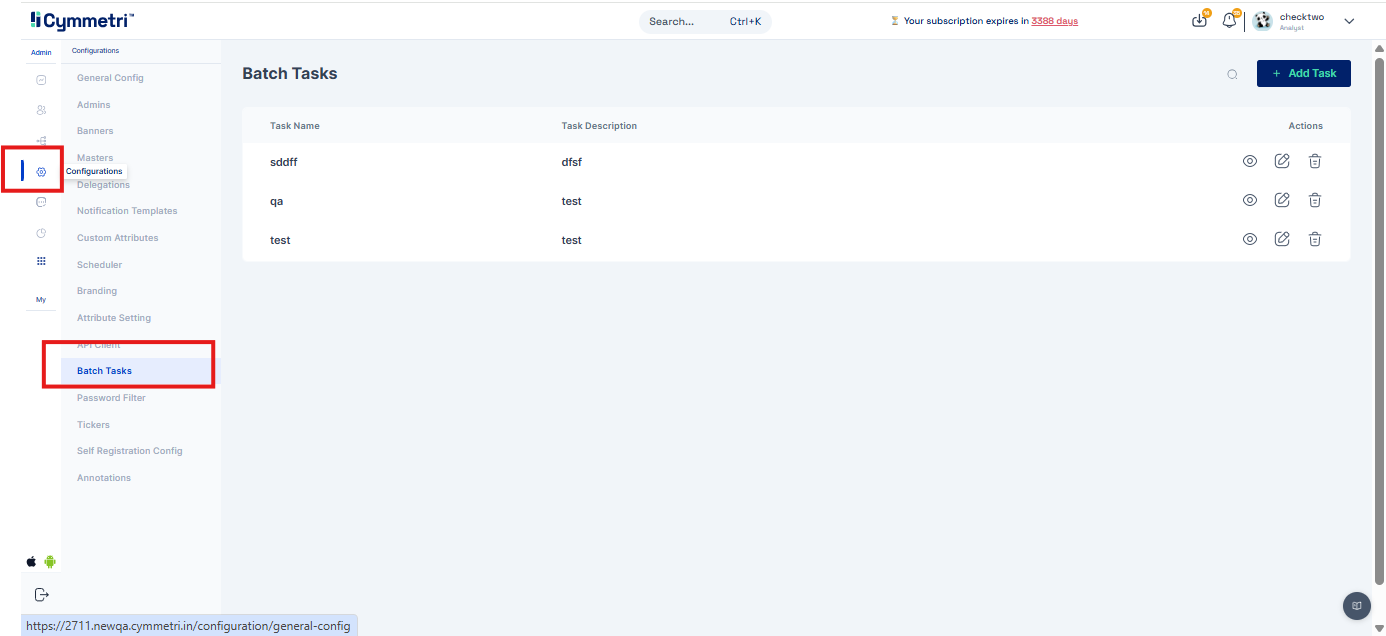
**Step 1: Navigate to Batch Tasks**
1. In the Cymmetri platform, go to the Configurations menu.
2. Select Batch Tasks.
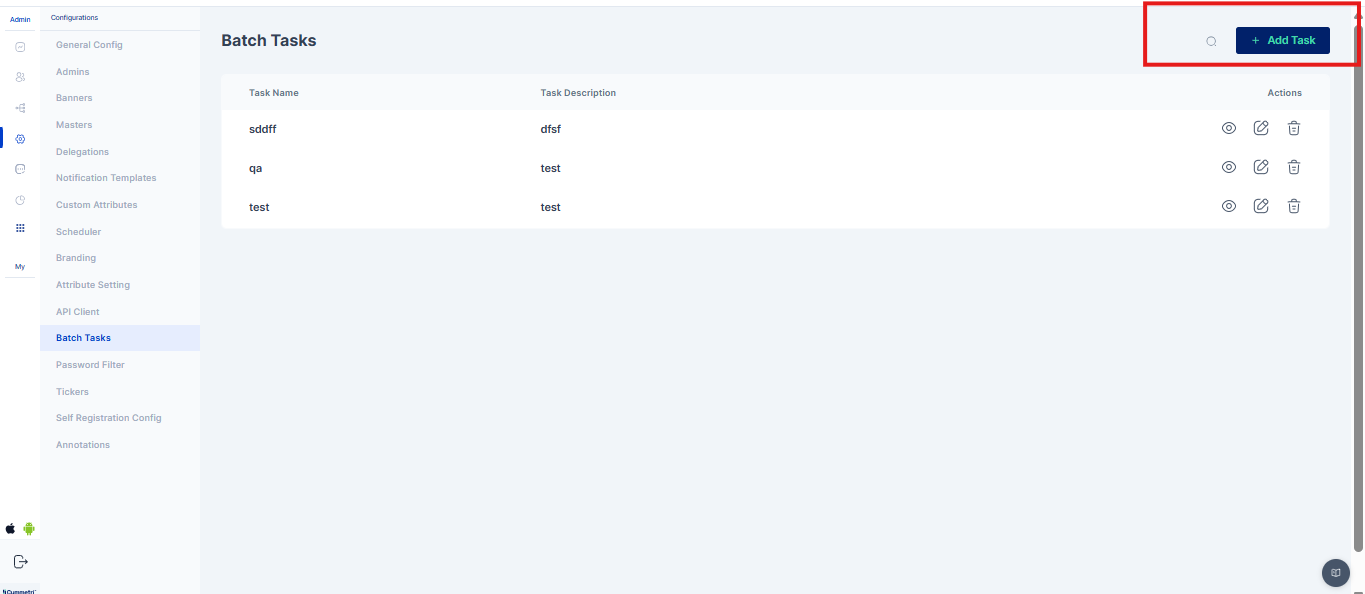
**Step 2: Add a New Task**
1. Click the Add Task button to create a new batch task configuration.
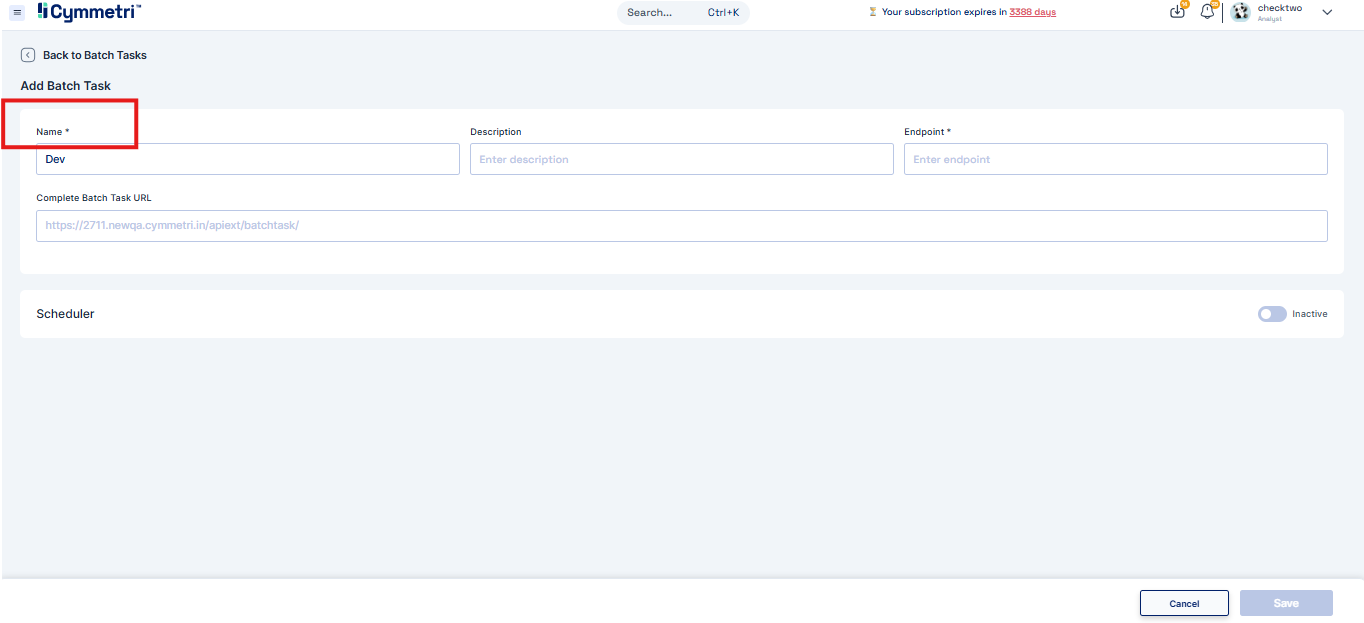
**Step 3: Define Task Details**
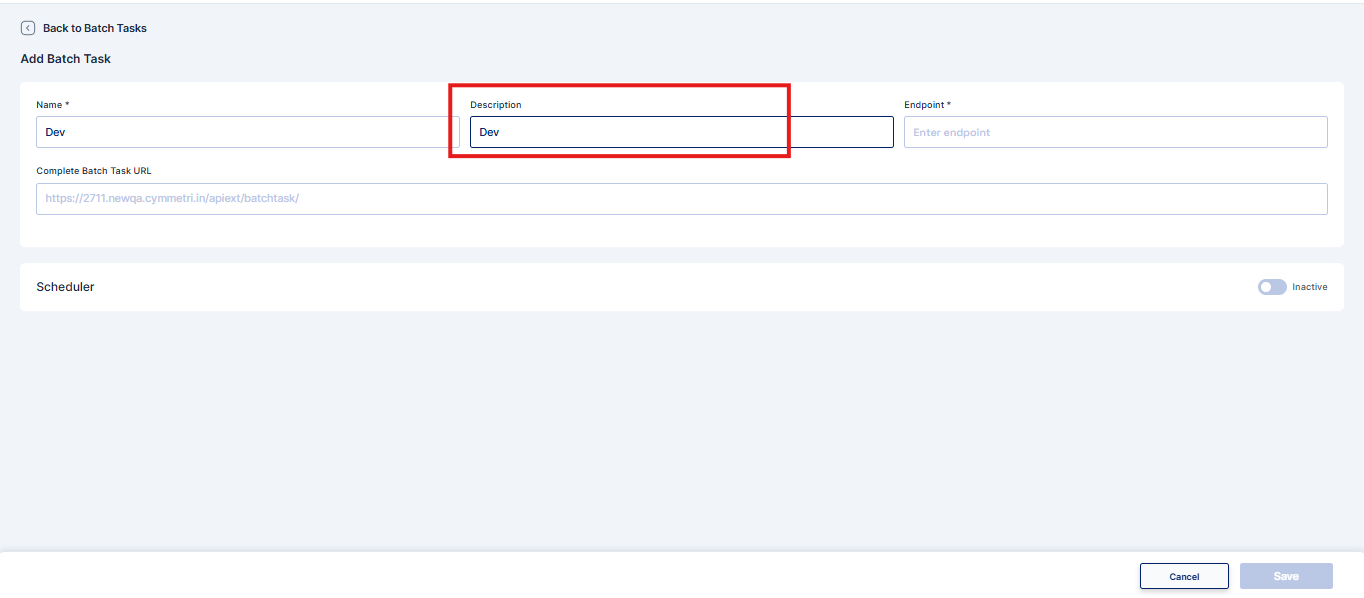
1. **Name**: Provide a unique, descriptive name for the task.
2. **Description**: Enter a brief explanation of the task's purpose.
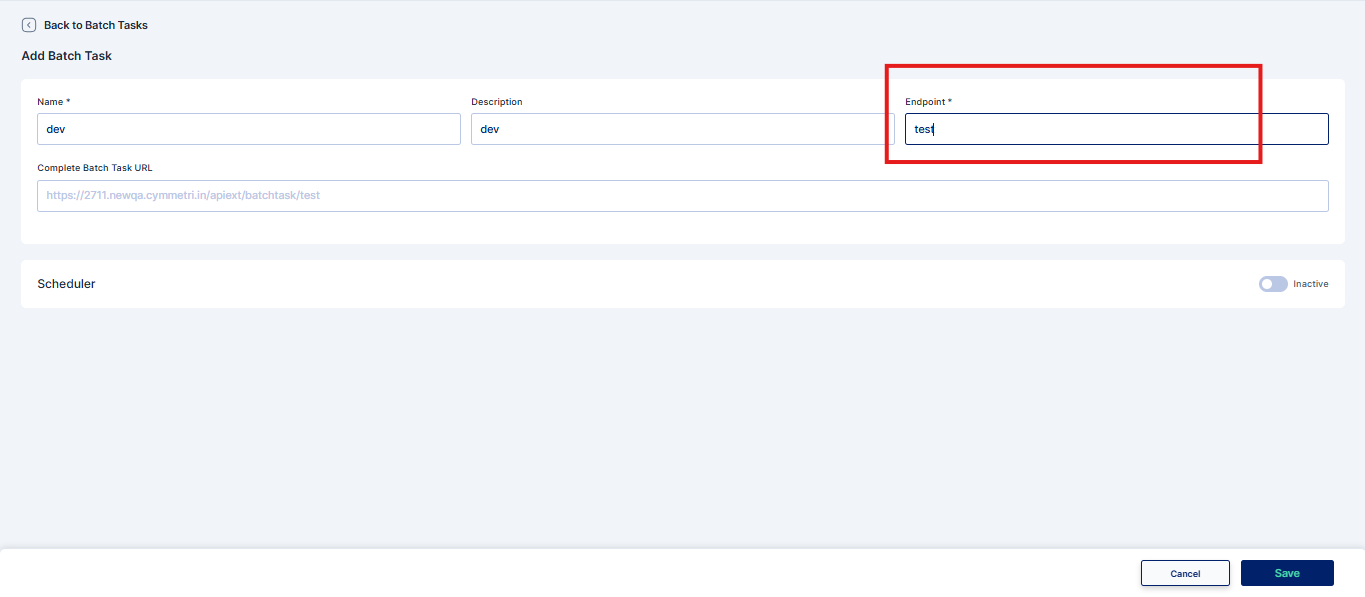
3. **Endpoint**: Specify the particular API operation the task will execute.
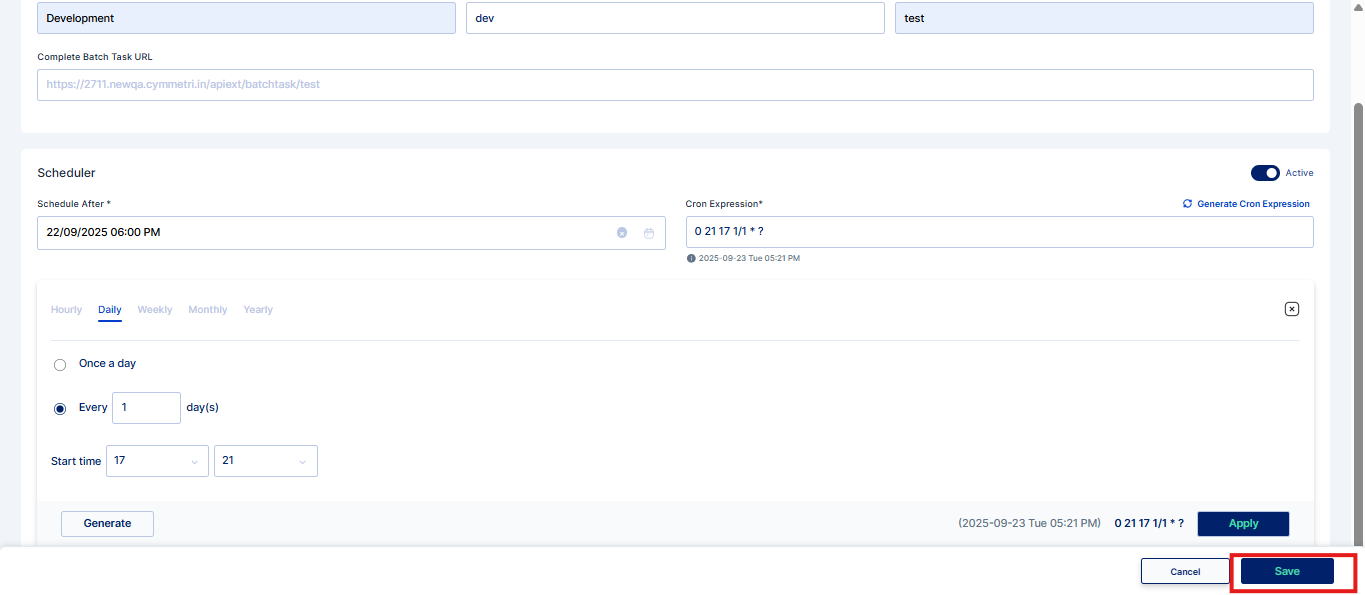
4. **Complete Batch Task URL**: Provide the full URL of the API endpoint.
**Step 4: Configure Scheduling**
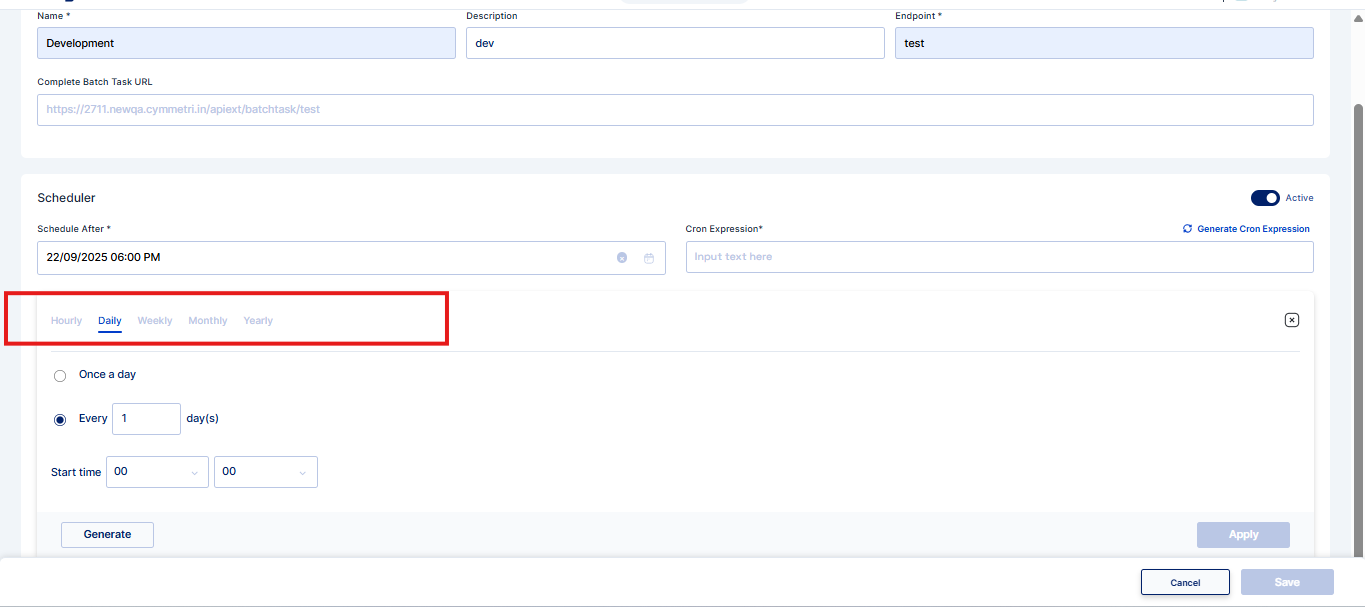
1. Use the toggle switch to enable or disable scheduling.
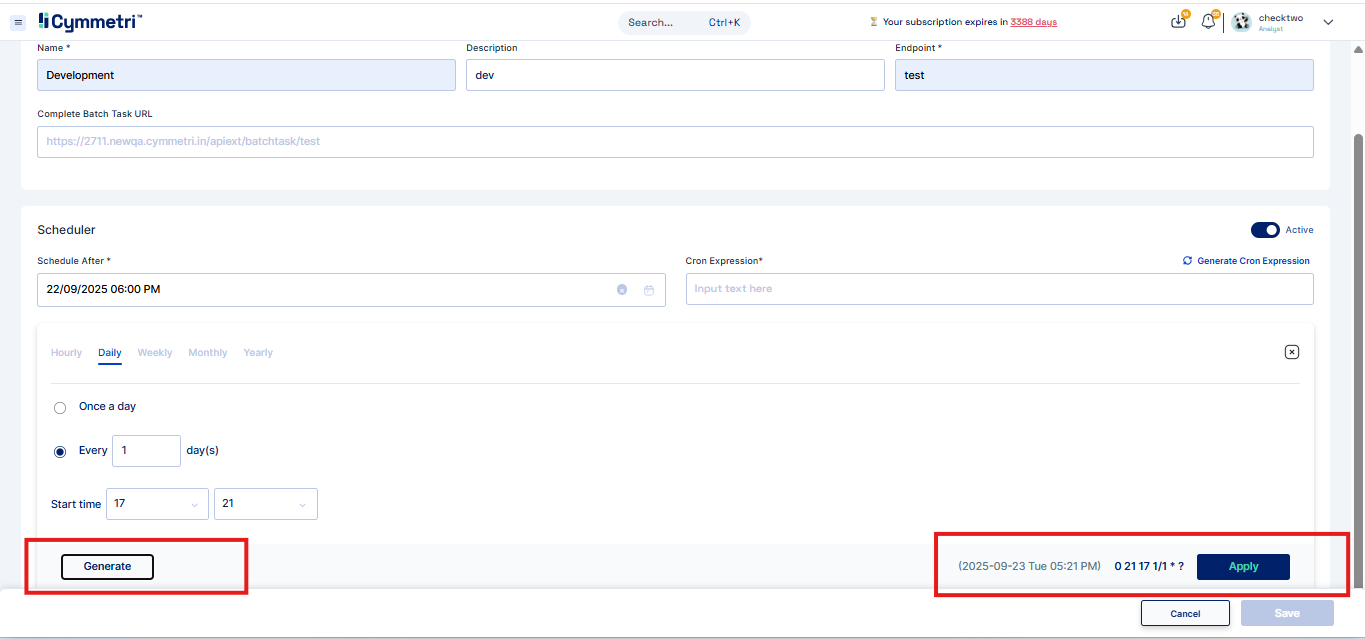
2. If enabled, configure the task's frequency. You can select from options such as daily, weekly, or monthly runs, or create a custom schedule using a CRON expression.
3. To generate a custom schedule, use the Generate Cron Expression tool, then click Generate and Apply.
4. If disabled, the task will only run when manually triggered.
5. Click Save to finalize the task configuration.
After a task runs, its status and execution details will be recorded in the Audit Log.
**Step 5: Execute a Batch Task**
1. To manually run a task, find it in the list of batch tasks.
2. Click the edit icon next to the task's name.
3. Select the Run option.
4. To verify the execution, navigate to the Audit Log, where you can view the status and results of the executed batch task.